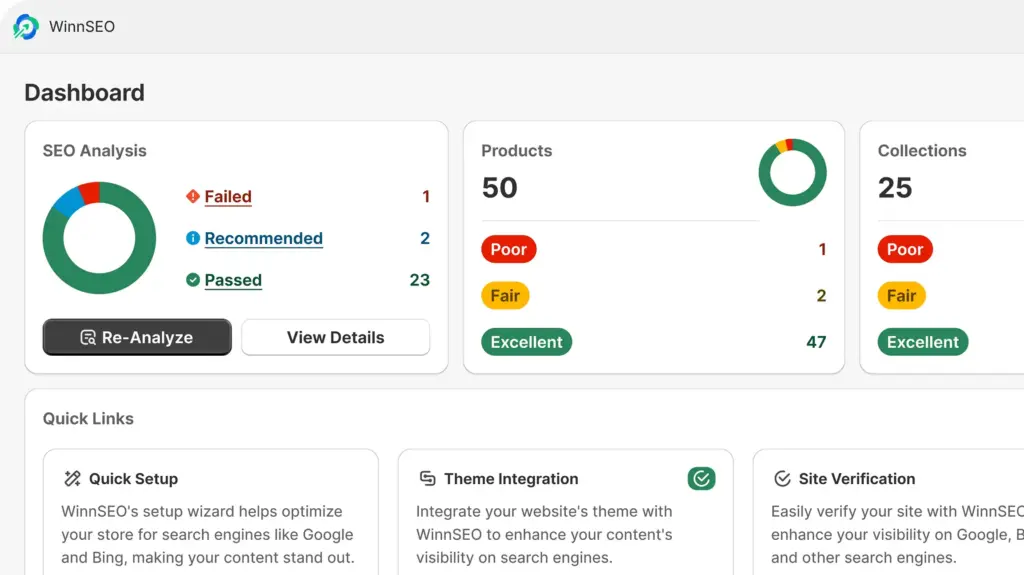
Norton Safe Web checks websites to tell you if they’re secure or not. They use their own smart tools and also listen to what users say. This helps everyone know if a site is good to visit.
In this guide, we’ll show you how to get your website reviewed by Norton Safe Web. Plus, we’ll cover how to link your site to your Norton account for updates, using the WinnSEO tool.
Verify Your Shopify Store with Norton Safe Web Using WinnSEO
Norton Safe Web can help you monitor your site and notify you via email about any changes to its rating. For that, you’ll need to verify your site ownership.
Here’s how you can do it:
Step 1: Sign in to the Norton Safe Web portal
Access the Norton Safe Web portal and log in to your existing account. If you don’t already have an account, you will need to sign up for a new one.
From the top navigation bar, click on “My Activity,” then select “My Sites” from the dropdown menu.
On the “My Sites” page, click the “+ Add Site” button.
Provide your website’s URL in the form and click the “Add Site” button.
Your site has been added successfully. Next, click the “Verify your site” link next to the site URL. You’ll see a pop up with the site verification options.
However, if you added the wrong site, you can always use the 3 dots there to remove the site.
Afterward, from the Method 1 – Add a Meta Tag option, copy the Meta Tag code.
Step 2: Access to your Shopify store
- Select Essential Tools from the WinnSEO menu.
- You’ll find Site Verification in the Tools tab.
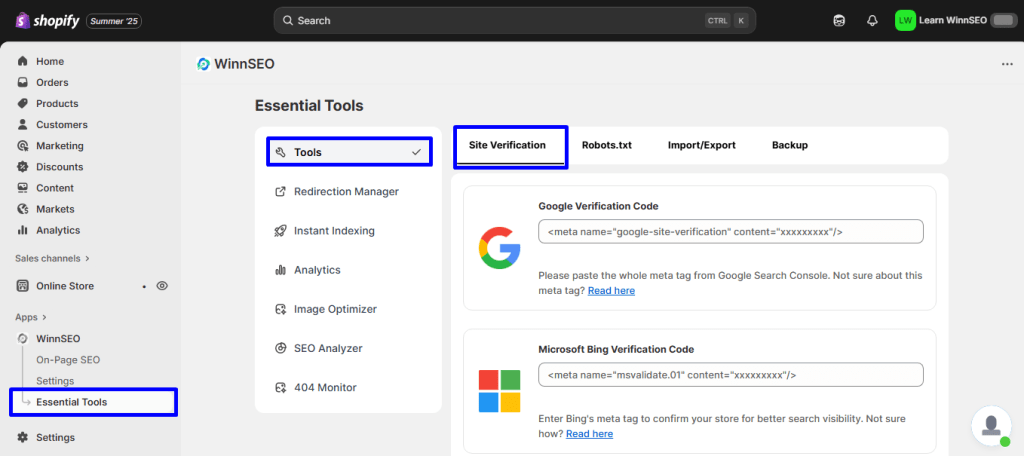
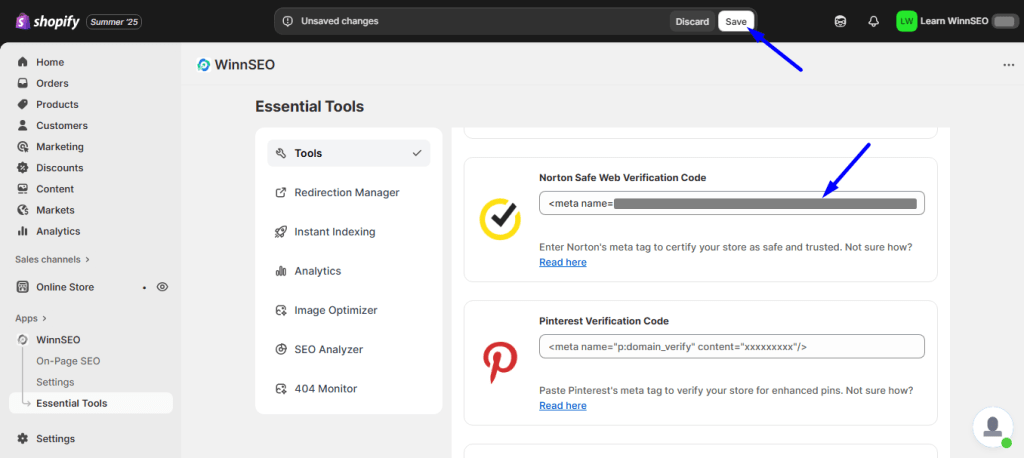
Scroll down to the “Norton Safe Web Verification Code” field and insert your copied Meta Tag there. And save the changes.
Step 3: Verify your site
Lastly, return to the Norton Safe Web portal and click the “Verify Now” button.
Isn’t it simple? Now it’s your turn to try.