Blog posts optimization is now smarter and easier. From robots meta to social previews, you can customize all your posts together. WinnSEO bulk settings save you time and make every post look perfect! Find out how to use this feature.
Table of Contents
Quickly Tweak Blog Posts Bulk Settings
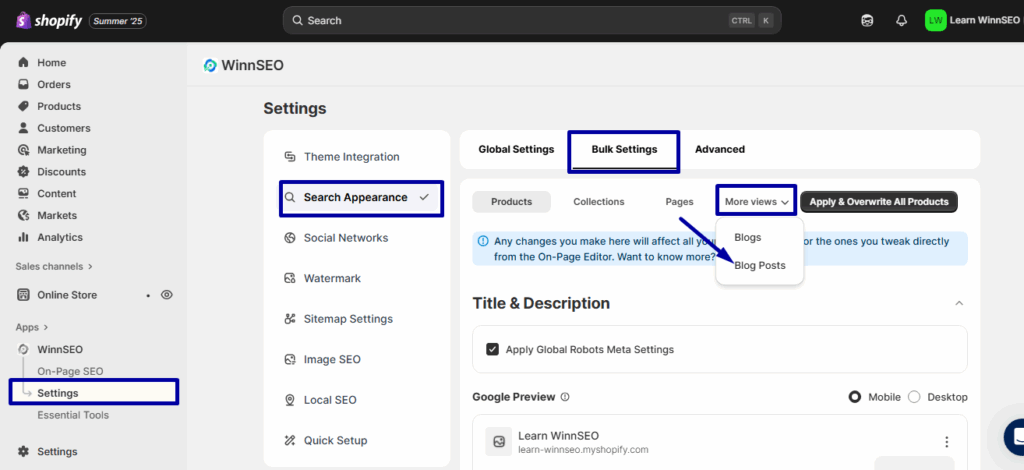
Find Bulk Settings option within the App:
- Within the WinnSEO app menu, click on Settings
- Navigate to Search Appearance
- Find the Bulk Settings tab
- From the dropdown menu of the More views, you can select Blog Posts
Blog Posts Bulk Settings
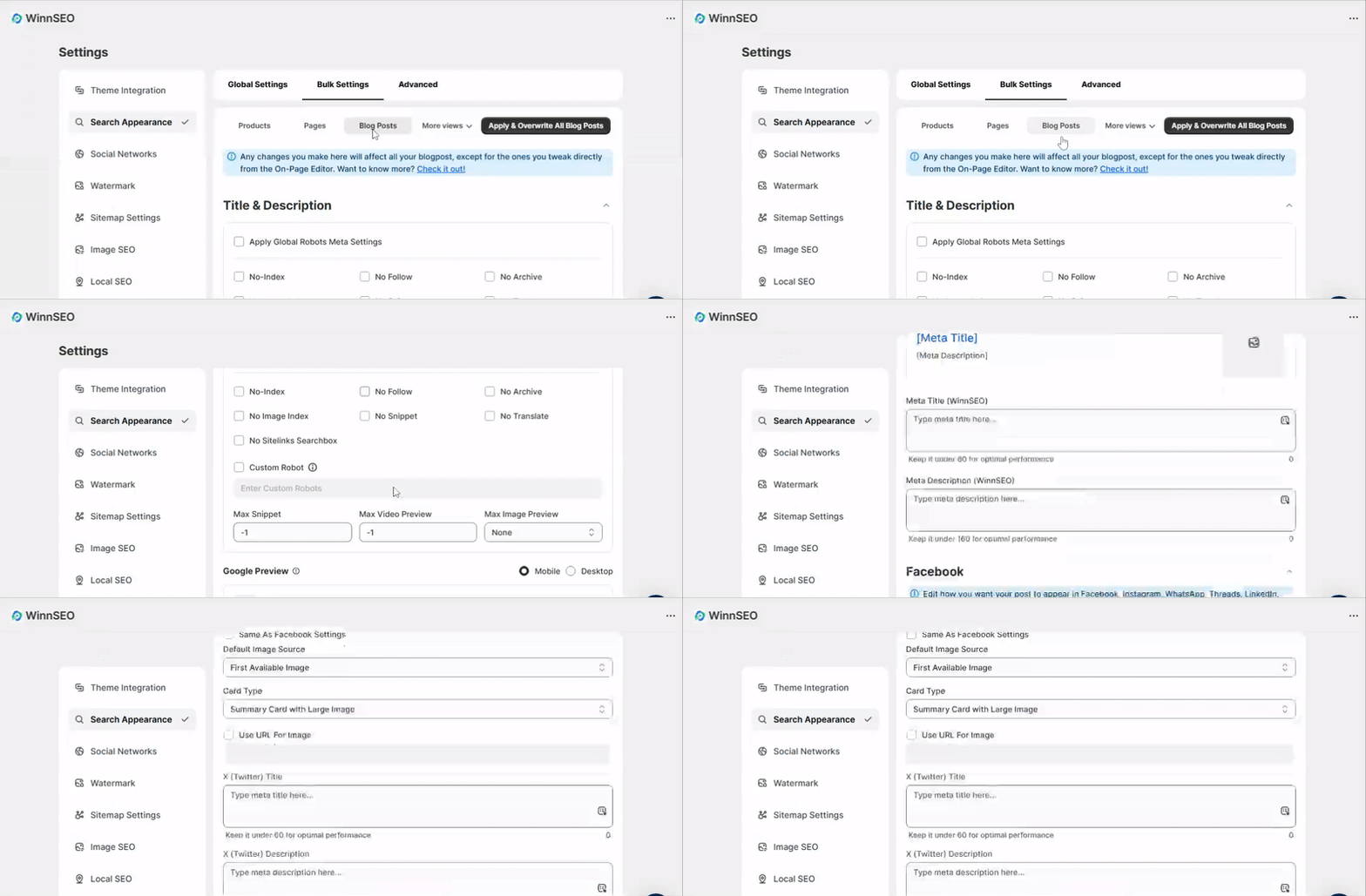
The Blog Posts settings at a glance for you.
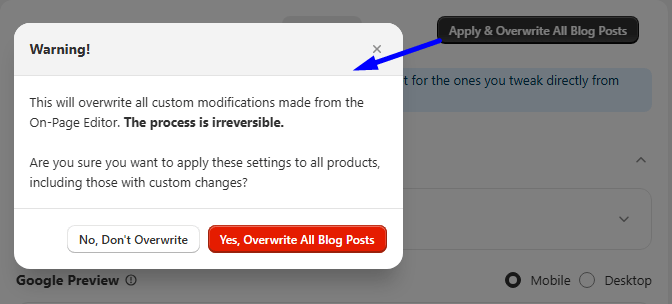
NOTE: If you personalize the blog posts, it’ll take priority. To make the main setting apply to all, just click “Apply & Overwrite All Blog Posts.”
Title & Description
The Apply Robots Meta Settings let’s you customize various setting options. But if you enable it, your site will simply follow the main Global settings for robots meta.
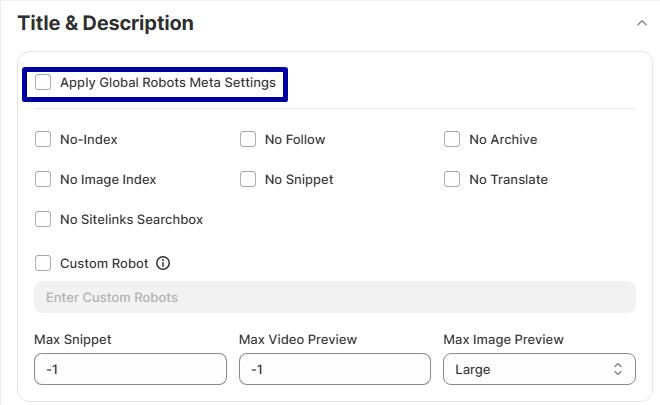
- No-Index: It tells search engines to completely ignore the blog posts.
- No Follow: Prevents your blog posts from passing on “ranking power” to linked pages. It is useful for links you don’t fully endorse.
- No Archive: Stops search engines from saving a cached (saved) copy of your blog posts.
- No Image Index: Keeps images on the blog posts out of Google Images search results.
- No Snippet: Instruct Google not to show a text summary or video preview of your blog posts in search results, only the title and link.
- No Translate: Stops Google from offering to translate your blog posts in search results.
- Custom Robot: Gives specific, advanced instructions to search engine robots on how to handle your content.
Advanced Robots Meta: This lets you fine-tune the blog posts with more options.
- Max Snippet: You get to decide the maximum number of characters for the text preview that search engines show for your page. You can set it to:
0 means no snippet
-1 means allow any length
Or a specific number. The max-snippet:100 for 100 characters. - Max Video Preview: You can set how many seconds your video preview will run for in search engines. You can set it to:
0 means no video preview
-1 means allow any length
Or a specific number of seconds. The max-snippet:15 for a 15-second preview. - Max Image Preview: This lets you control how big the picture for your page shows up in search results.
Options usually include:
- None images won’t show up in the preview
- Standard the preview will be the default/standard size.
- Large means the preview will be bigger
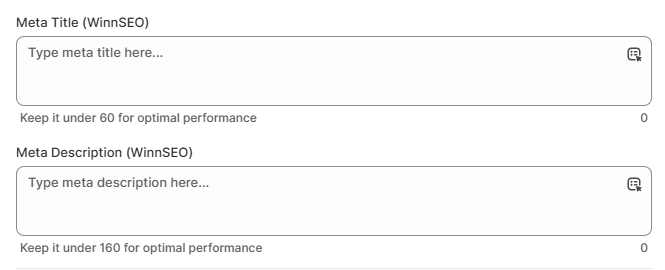
Meta Title: This is like the main headline for your blog posts, what people see in their browser tabs and click on in search results. You can create your own (up to 60 characters) or choose from preset options.
Meta Description: It’s just a short summary of your blog posts that pops up under the title in search results. You can write your own or select from available options like a collection description.
These features let you control how your content looks when shared on Facebook. Pretty cool, huh?
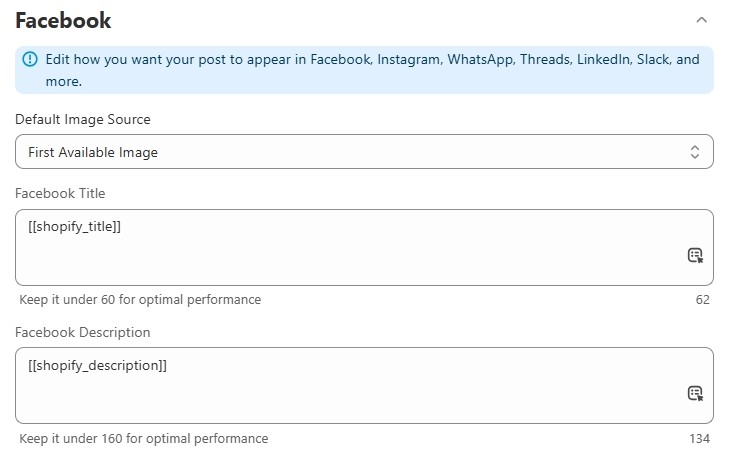
- Default Image Source: The options here are –
- First Available Image
Facebook will automatically use the first image it finds on your blog posts when shared.
- Custom Image
You can upload a specific image to be used when your content is shared on Facebook, and you can change it anytime.
- Use URL For Image
You can directly enter the URL of an image you want to use, instead of using the first image on your blog posts or uploading a new one.
- Facebook Title & Facebook Description: You can change the title and description that appear when your content is shared on these platforms, or pick from variables.
Twitter Settings
Find it under ‘Facebook and customize how you need it.
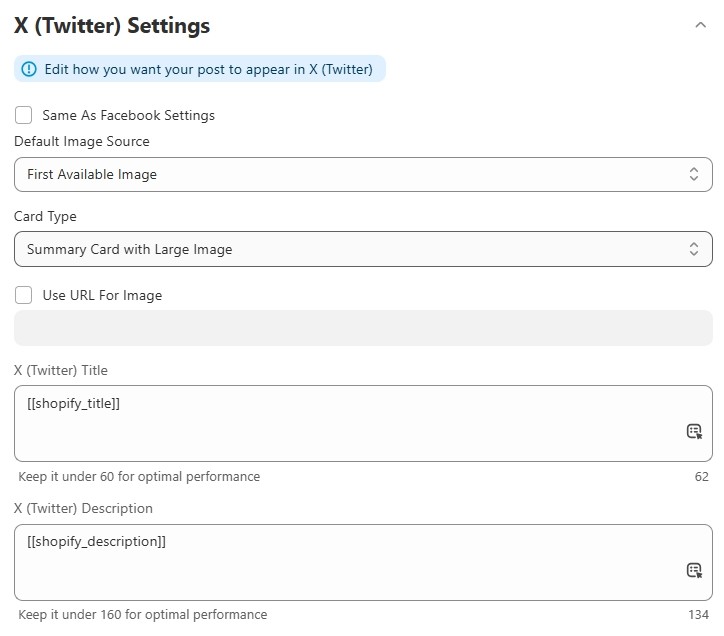
You can totally make your Twitter sharing work just like your Facebook settings by checking “Use Same Settings as Facebook.” The only thing is, if you go that route, you won’t be able to adjust individual Twitter options unless you uncheck that box again.
However, you can also uncheck “Use Same Settings as Facebook” to access the individual Twitter settings.
- Default Image Source: The options here are –
- First Available Image: WinnSEO will just take the very first image from your blog posts and use it for your Twitter post.
- Custom Image: This is your spot to upload any image you want. Feel free to swap it out anytime.
- Use URL For Image: If your image is online, just paste its URL here, and we’ll fetch it for you.
- Card Type: This option lets you control how shared links look on Twitter.
- Summary card: Shows a small picture and a short text summary for a linked page.
- Summary card with large image: Shows a large image above the text summary for a linked page, making the preview more noticeable.
X (Twitter) Title and X (Twitter) Description: You can write your very own title and description from scratch. Plus, you’ve got some cool dynamic variables to pick from here.
Now you can update all your blog posts for better search ranking in one go. WinnSEO is super efficient!