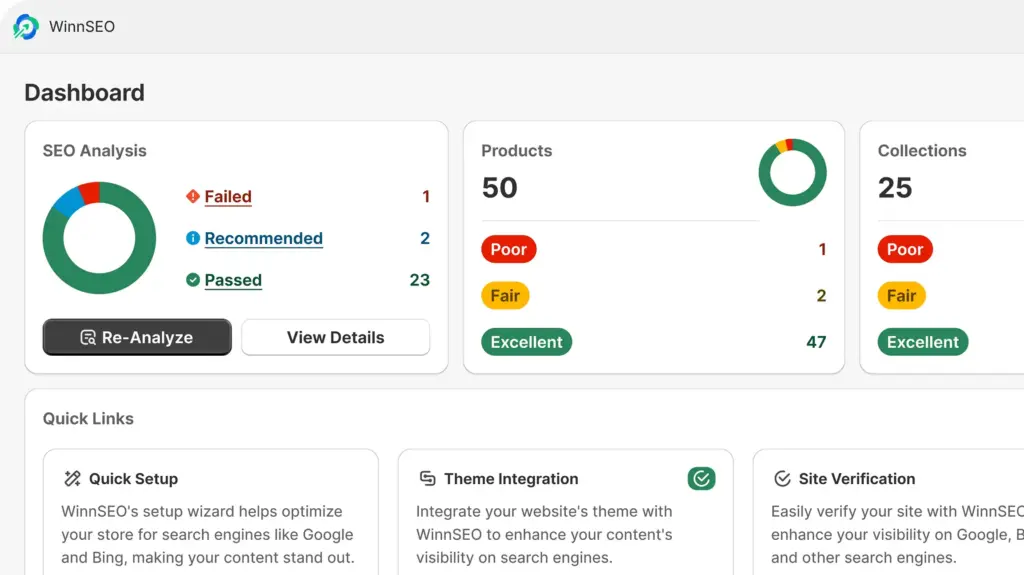
Social network settings are kind of like the behind-the-scenes magic that controls how your site looks when people share it on places like Facebook or Twitter.
With WinnSEO, you can make sure your content looks good every time it pops up in someone’s feed.
Let’s walk through how to fine-tune your Facebook settings with WinnSEO.
Table of Contents
Facebook Settings
- Navigate to Settings under WinnSEO App
- Click Social Networks
- Select Facebook Settings
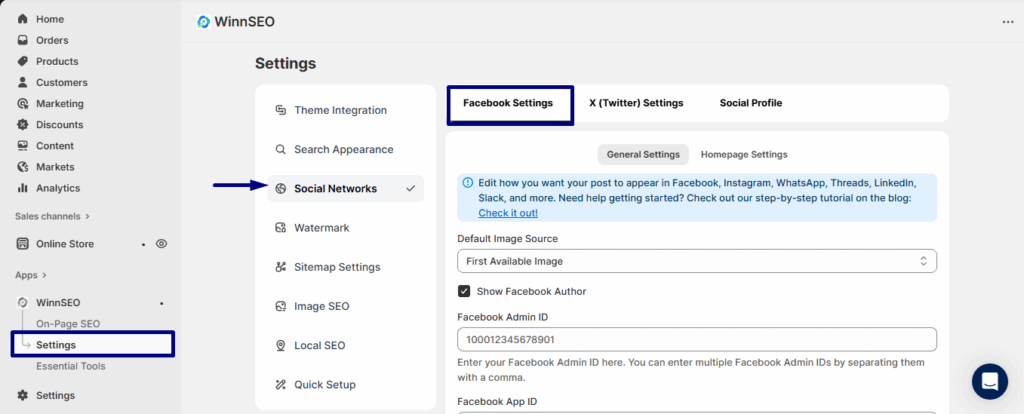
You’ve got two main sections for your Facebook settings here in WinnSEO: General Settings and Homepage Settings.
Facebook General Settings
Think of this as your master control panel for how your stuff looks when it’s shared on Facebook.
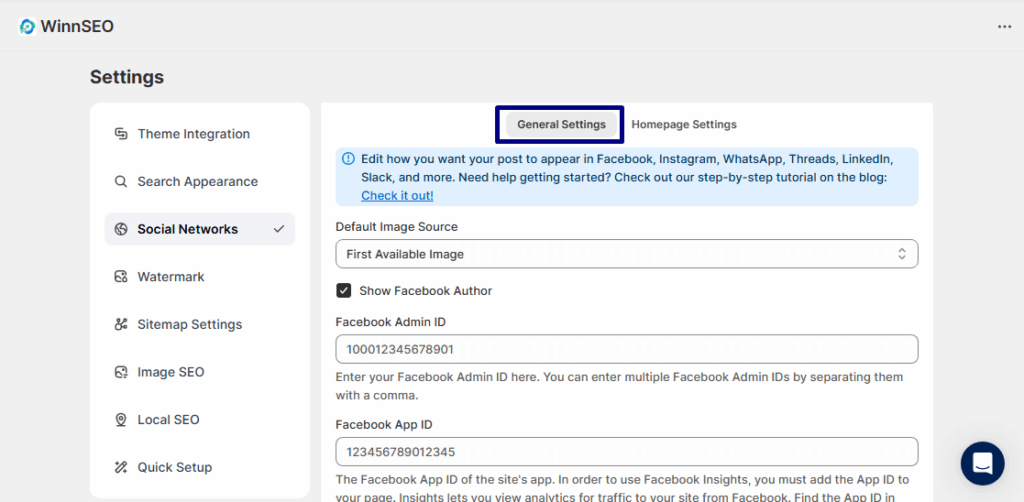
Let’s check out the customization options here.
Default Image Source
There are two options for you to pick from.
- First Available Image: This just means your site will try to grab the very first picture it finds on your page to show when someone shares your content. It’s the “easy button” for images!
- Custom Image: This is a super-specific option for you. You get to choose your desired image that folks see when your content is shared.
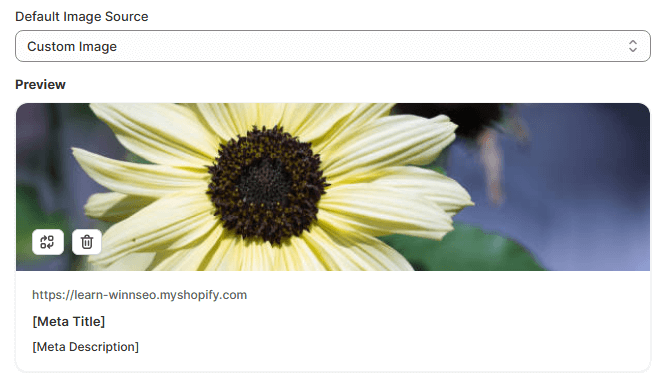
- Use URL For Image: Insert any image URL and say to your system, “Hey, go grab this specific photo from this specific spot on the internet!”
Show Facebook Author
Turn this on, and WinnSEO will automatically pop your website’s Facebook page URL (the one from your Social Profile) right into your page’s metadata.
Facebook Admin ID
You can give Facebook a heads-up on who’s in charge of your page or App by adding the admin ID.

Use this tool, Lookup ID, to find your Facebook admin ID
Facebook App ID
It’s a special code for your app that lets Facebook know who it is. It’s super handy for seeing how many people are checking out your site from Facebook and other neat stats.
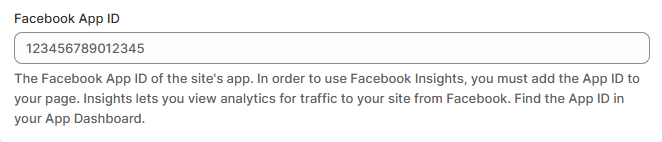
Check this documentation: Find your Facebook App ID
Facebook Homepage Settings
Now we’ll move to the Homepage Settings of Facebook.
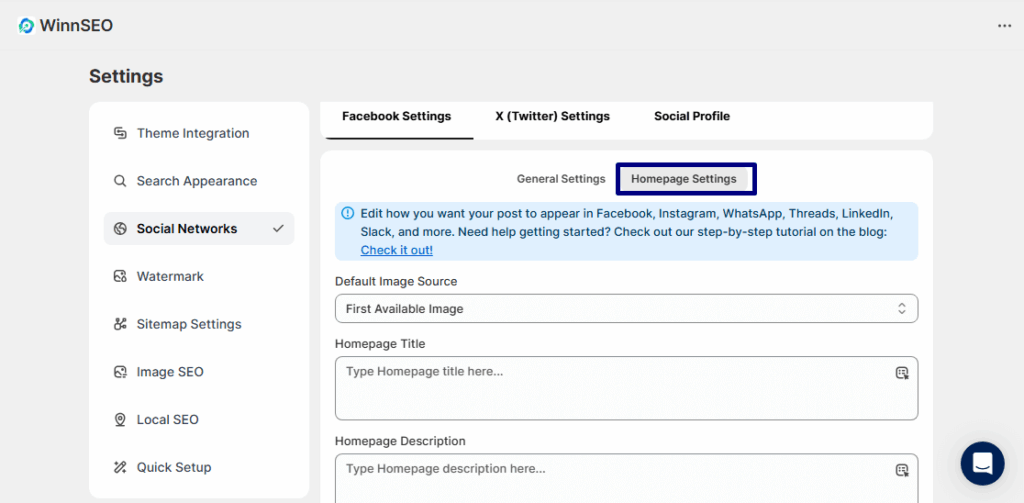
Default Image Source
You’ve got two choices here, just like we saw with the General Settings.
- First Available Image: This just means your site will automatically grab the very first picture on your homepage to show off when folks share it.
Easy peasy!
- Custom Image: This is your field! Pick the perfect picture to represent your homepage when it pops up on social media.
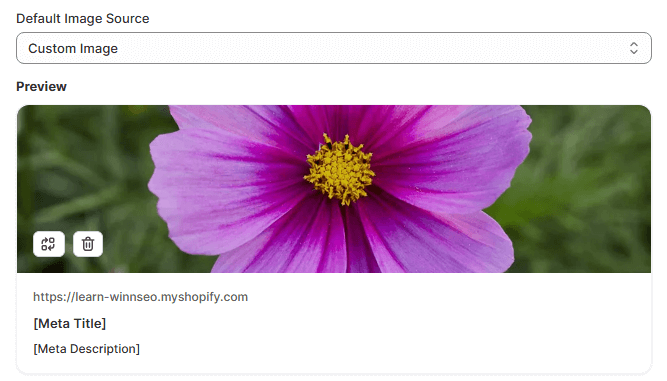
- Use URL for Image: Got a pic already chilling online? Just paste its web address here, and your homepage will use that exact image for its preview.
Homepage Title
Set the big and bold headline on your homepage in the field.

Homepage Description
The description is actually a title blurb that tells people what your homepage is all about at a glance.

Now you’re all set to make your content look awesome every time it’s shared on Facebook. Keep shining!