


If you are ever greeted by this message, “Alternate Page with Proper Canonical Tag” in Google Search Console, don’t scratch your head.
Seriously, this isn’t a digital enigma you can’t solve. Many website owners, especially those navigating this competitive digital landscape, get this message.
In this guide, we’ll demystify the canonical tag and provide you with the in-depth knowledge to effectively fix this error.
Table of Contents
What does a Canonical Tag mean?
You might have the same information on a few different web pages. Now, you pick one page among them, and on the other similar pages, you add a canonical tag. This tag is a piece of HTML code that contains the specific address of your main page. It’s like telling Google: ‘Hey, if you see these similar pages, the main one is this specific address, which is [insert main page address here].’
Suppose your site has two product pages named:
yourdomain.com/product1
yourdomain.com/product2
The content is the same on both pages. Say, the main content is yourdomain.com/product1
Now we have to add a canonical tag to the HTML code of winnseo.com/product2 and to the HTML code of yourdomain.com/product1
<link rel="canonical"href="https://yourdomain.com/product1">So Google’ll consider yourdomain.com/product1 as the canonical version of the page and index.
In short: All pages need a canonical tag. The original page points to itself, and duplicate pages point to the original.
“Alternate Page with Proper Canonical Tag” – Is it a real error?
The “Alternate Page with Proper Canonical Tag” notification in Google Search Console essentially means that Google has found multiple versions of a page on your site, and one of those versions correctly points to another as the preferred or “canonical” version.
In the exact sense, it’s not an “error” because you’ve technically told Google which page to prefer. The message literally highlights potential areas of your website for optimization and ensures Google isn’t confused about which page to index and rank.
In-depth Insight: Google flags your other pages to consolidate ranking signals. Think of it like this: if you have multiple identical pages, any backlinks or social shares might be split across them, isn’t it? It weakens the overall authority of your content. If you use canonical tags correctly, you tell Google to treat all the signals pointing to the alternate pages are belonging to the canonical version. It’ll strengthen content ranking potential.
However, ignoring duplicate content can negatively impact your SEO by confusing search engines, wasting crawl budget, and potentially leading to lower rankings.
What might cause “Alternate Page with Proper Canonical Tag”?
So, before learning the fixing methods, let’s understand why Google is flagging these pages.
- Head over to your Google Search Console
- Navigate to the “Coverage” report, and search for “Excluded” pages with the status “Alternate page with proper canonical tag.”
- Click on these will show you the affected URLs
Here are some common scenarios that trigger this:
- Different URLs for the same content: This is a frequent culprit. Variations like http://www.yourdomain.com/page, https://www.yourdomain.com/page, http://yourdomain.com/page/, and https://www.yourdomain.com/page/ all serve the same content but are technically different URLs.
- Product URL with ?pr_prod_strat…: If you use extra tracking code in a product URL, Google’ll ignore it and focus on the clean base URL.
- Pagination issue: If you have product category pages or lengthy articles split into multiple pages, e.g., /products?page=1, /products?page=2, these seem like similar content.
- URL parameters: Tracking parameters added to URLs for analytics may cause problems. For example, you use UTM links like /product? product?id=123&utm_source=facebook to track might cause issues. Also, you may add any sorting/filtering options on your Shopify site, like /products?sort=price_low_to_high can create numerous duplicate URLs.
- URL with wpm or web-pixel-manager: Google disregarded Shopify’s internal tracking parameters in a URL, preferring the core page URL. Suppose https://www.example.com/product-a?wpm_param=123 and https://www.example.com/product-a are the same page. You’ve added ?wpm_param=123 for internal tracking. So, Google’ll ignore it and focus only on the main URL: https://www.example.com/product-a
- URL with/without trailing backslash: Shopify consistently picks one version of the URL, either with or without the trailing backslash / as the main one for search engines.
- Mobile vs. Desktop URLs (if separate): It’s not common, but with the prevalence of responsive design, some older sites might have separate mobile versions (e.g., m.yourdomain.com/page vs. www.yourdomain.com/page).
- Print versions of pages: Many websites offer printer-friendly versions of their content, often with a different URL (e.g., /page?print=true).
Key Takeaways: For each of these cases, Google sees several URLs ultimately leading to the same content. While the canonical tag correctly identifies the preferred version, it’s still a signal that your website structure might have areas for improvement. So, you should be careful about creating multiple duplicate URLs. For example, consistently using HTTPS across your entire site eliminates one common reason for Google to find multiple versions of the same page.
Implementing the Right Solutions
Now, let’s get to the practical part, fixing these issues:
Implementing 301 Redirection
According to Google, “Redirecting URLs is the practice of resolving an existing URL to a different one.”
A 301 redirect is a permanent redirection from one URL to another. In short, it’s a way of telling browsers and search engines, “This page has permanently moved to a new location.” Its primary function is to guide users and search engines to the correct and updated resource.
Of course, precise and careful implementation is crucial. Otherwise, it can lead to broken links, a negative user experience, and significant harm to your site’s SEO.
However, Shopify has features that let you set a redirect easily. For that, log in to your account:
- Navigate to the content section and click on Menus
- URL redirects
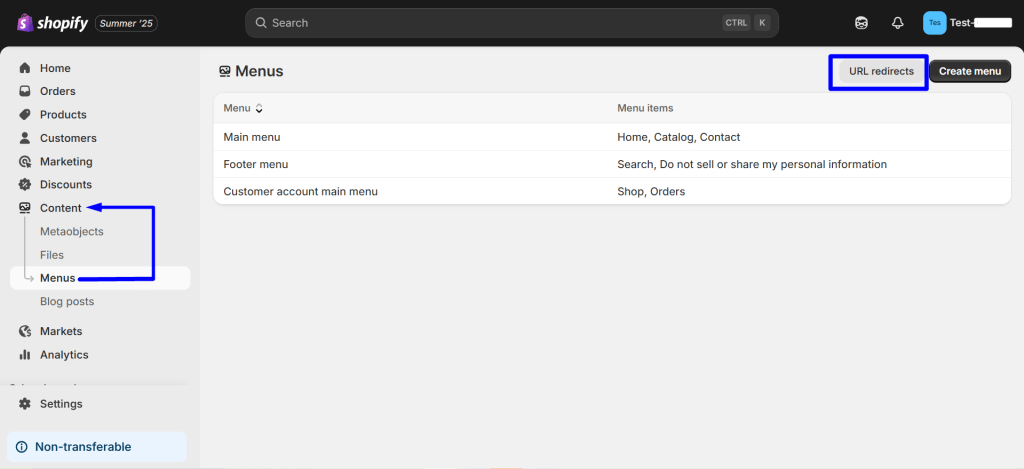
Now, you’ll see the “Create URL redirect” option, click on it
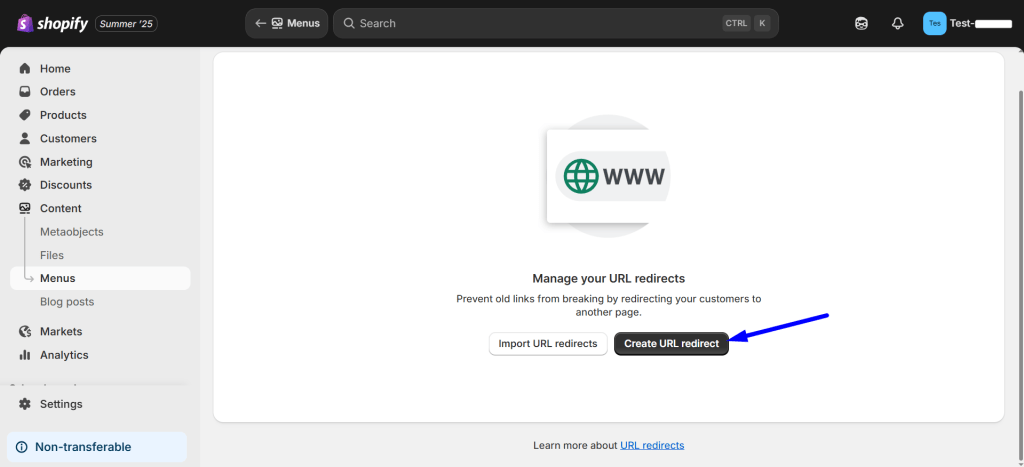
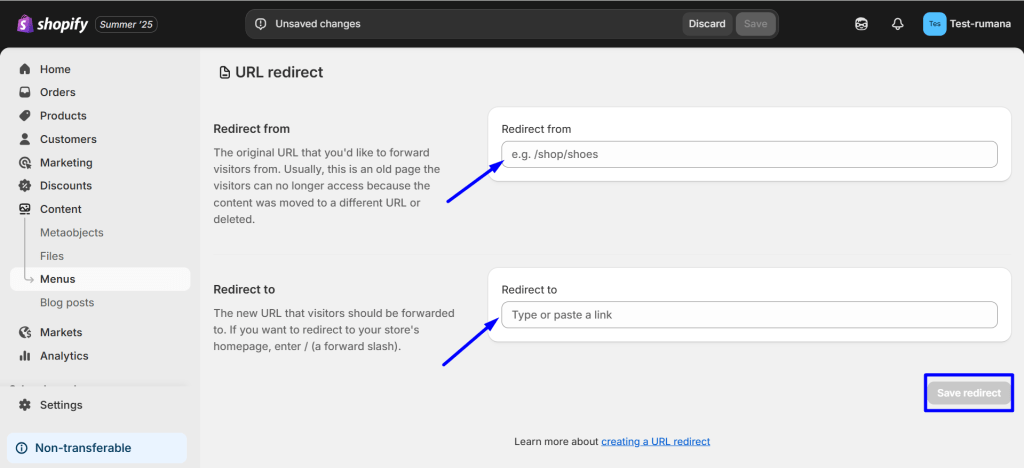
Here you’ll get to set:
- Redirect from: You’ll insert the old URL that you want to redirect visitors from.
- Redirect to: Put the new URL that you want to redirect visitors to.
- Finally, you have to click on the “Save redirect” button.
Maintain URL Consistency
The best long-term solution for HTTP/HTTPS, www/non-www, trailing slashes and case sensitivity variations is to choose one preferred version and implement 301 redirects from the other versions to your canonical choice.
Let’s clear the point:
- HTTP vs. HTTPS: Ensuring all traffic goes to https://yourdomain.com instead of http://yourdomain.com.
- WWW vs. non-WWW: You have to decide whether your primary URL is www.yourdomain.com or yourdomain.com and redirecting the other.
- Trailing Slashes: You should maintain consistency using or omitting trailing slashes (e.g., yourdomain.com/page/ vs. yourdomain.com/page).
- Case Sensitivity: Redirecting yourdomain.com/Page to yourdomain.com/page to avoid two distinct URLs.
Take Care of Pagination
For paginated content, follow these instructions:
- Avoid canonicalizing all paginated pages to the first page. This tells Google that the first page is the definitive version. Be careful, as users might land on the first page when looking for content on later pages. For example, if users are specifically looking for content on page 3 of a product listing, canonicalizing to page 1 might not be ideal.
However, if you use WinnSEO, it’ll automatically include the self-referencing canonical URL to the paginated pages.
- Make Noindex Paginated Pages. If you don’t want Google to show your subsequent paginated pages (like page 2, 3, etc.) in search results, but still want them to follow links on those pages, use a noindex tag.
A noindex is a rule set with either a <meta> tag or HTTP response header.
Here are the details by Google: Block Search indexing with noindex
- The rel=”next” and rel=”prev” tags, formerly used in the <head> section to signify sequential page relationships and consolidate ranking signals. But, are no longer supported by Google.
Handling URL Parameters
The URL Parameters are often used to filter, sort, or track content. These can introduce significant SEO challenges, primarily by generating duplicate content and wasting crawl budget. To avoid the issues and maintain strong search engine visibility, it’s crucial to implement best practices:
- You can utilize the rel=”canonical” tag to designate the preferred, main version of a page.
- Strategically block problematic parameters in the robots.txt file to prevent unnecessary crawling.
- Also, you can apply a noindex directive to instruct search engines not to include specific parameterized URLs in their index.
Remember, misconfiguring the URL Parameters can also lead to Google missing important content and others.
Canonicalizing Mobile URLs (if separate)
Do you have a separate mobile site? Then confirm that the canonical tag on the mobile page points to the desktop version, and vice versa. You can use a rel=”alternate” tag on the desktop page pointing to the mobile version. However, responsive design is the recommended approach in most cases. It helps to eliminate this issue entirely.
However, maintaining separate mobile sites adds complexity and can be challenging for SEO. You should migrate to a responsive design for a more future-proof and SEO-friendly solution.
Canonicalizing Print Pages
On your print-friendly pages, we recommend using a canonical tag pointing back to the main, web-viewable version of the content.
Let’s summarize it for you: Consistency is key. Ensure your canonical tags are implemented consistently across your entire website. Avoid conflicting signals, such as having different canonical tags on the same set of alternate pages. Also, be careful not to canonicalize a page to itself when it’s actually an alternate version of another page.
Read this and gain more insights about specifying a canonical URL 👉 How to specify a canonical URL with rel=”canonical” and other methods
Using SEO Tools to Manage Canonical Tags
Check the pages and make sure the correct canonical URL is added there. I
There are good SEO tools that simplify the process of setting canonical URLs. For example, in WinnSEO, you can easily specify the canonical URL for any product page. Do you want to know how? Install WinnSEO in your Shopify store.
Then follow the easy steps:
- Navigate to the “On-page” section under WinnSEO
- Select the desired product
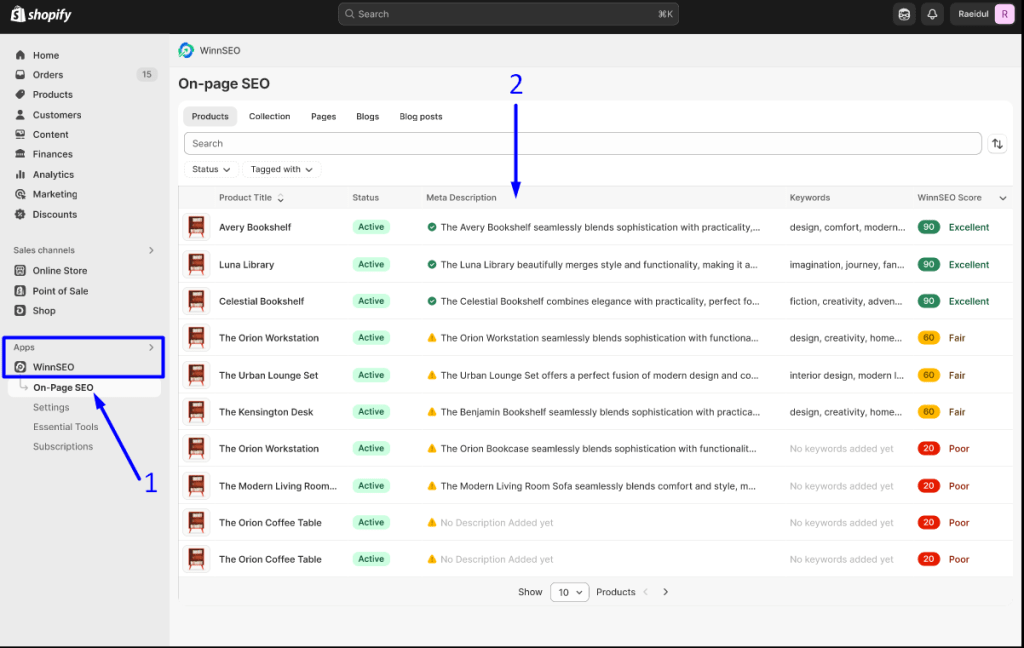
Go to the “Advanced” tab
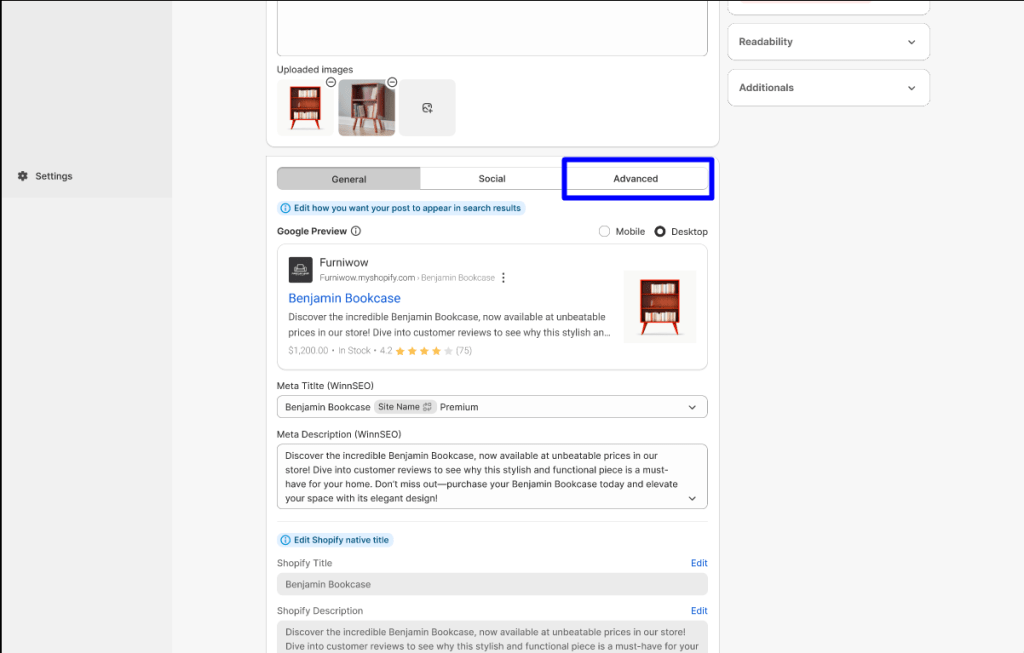
Scroll down and find the “Canonical URL” field.
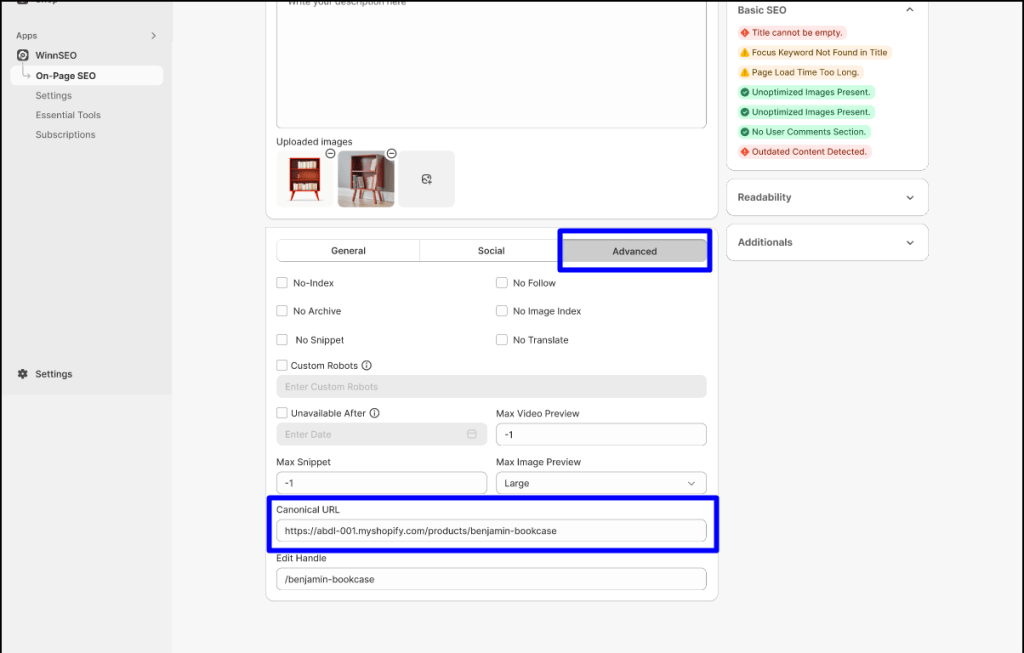
This allows you to directly tell search engines which version of the product page you want them to prioritize.
Isn’t it very simple? Give it a try!
The Final Check: Monitoring and Validation
Done with applying your fixes? Now you can head back to Google Search Console and monitor the “Coverage” report. Don’t take stress! It usually takes some time for Google to recrawl and re-evaluate your pages. Here, you have to see the number of “Alternate Page with Proper Canonical Tag” notifications decrease over time.
You can also validate individual canonical tags using browser developer tools or by using online SEO analysis tools that can check the canonical tag of a specific URL.
Pro TIPS: You can’t get immediate results. Google’s crawling and indexing process needs time. Be patient and continue to monitor your Search Console reports. If the errors persist, double-check your implementation for any mistakes or inconsistencies.
Conclusion
“Alternate Page with Proper Canonical Tag” is not an actual error. But it’s an alert to clean up your website’s structure for better SEO. Yes, canonical tags guide Google; seeing this often means you can reduce duplicate content at the root. By fixing things we discussed above, you’ll build a clearer, stronger website that search engines will appreciate.