Google doesn’t just rely on what you say your site’s name is. It looks at different clues on your homepage to figure out your official brand identity. The goal? To display your website’s name clearly in search results so folks instantly recognize your brand.

Google uses four methods to determine your site name. Let’s see what they are.
Display Site Name in SERP
While Google’s algorithms may seem a bit complex, they primarily rely on the following four methods to determine your site name, which are easy to understand:
- The name is found in your homepage’s title tag.
- The name specified in your homepage’s Open Graph metadata.
- The name used in your homepage’s H1 header tag.
- The name present within the WebSite structured data on your site.
Homepage’s title tag
The <title> tag in the <head> section of your homepage HTML is a fundamental signal. Google often uses the most prominent or official-looking part of this title as your site name, especially if it’s consistently branded. For example, if your title tag is ‘TrendyMart – Affordable Fashion for Everyone,’ Google might extract ‘TrendyMart’ as the site name and display it in search results.”
Homepage’s Open Graph metadata
Open Graph (OG) metadata, specifically the og:site_name property, provides explicit information about your site’s name. This metadata is primarily used when your content is shared on social media platforms. And Google also uses it as a strong hint for your site name in SERPs. A typical implementation looks like <meta property=”og:site_name” content=”Your Company Name”>.
However, with WinnSEO, you can set a site name that Google may use for your homepage.
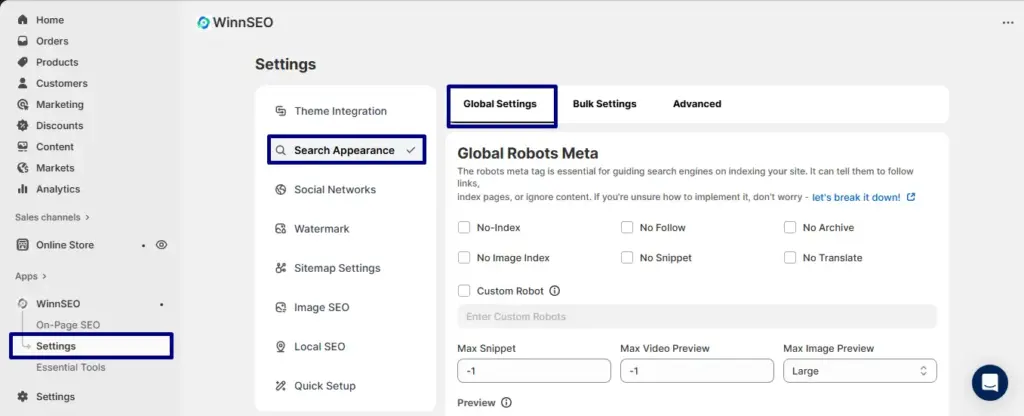
From your Shopify admin panel, navigate to the “Apps” section:
- On the left-hand menu within the WinnSEO app, click on “Settings”
- Under Settings, select “Search Appearance”
- In the main content area, select “Global Settings”
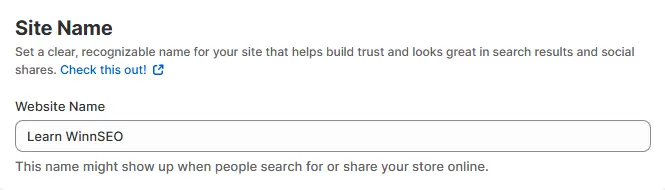
Scroll down and you’ll see the “Site Name” section. Find the input field labeled “Website Name” and type your desired site name into this field.
This is super quick and easy!
The name in your homepage’s H1 header tag
Think of your homepage’s H1 header tag as the big, bold headline. The <h1> header tag is generally used for the main heading or title of a page. On your homepage, this <h1> often contains your brand name or a prominent representation of it. In Shopify, you can edit it from the Liquid file. Google considers this a strong on-page signal for understanding the primary name associated with your website.
Website structured data on your site
Adding “Website structured data” is like directly whispering your preferred site name into Google’s ear. The good news is, Shopify usually includes the schema automatically! And this is the most detailed and recommended method that you can edit with Shopify’s Liquid file. Generally, you can include JSON-LD markup on your homepage that specifies your site’s name and URL, for example:
JSON
<script type="application/ld+json">
{
 "@context": "https://schema.org",
 "@type": "WebSite",
 "name": "Your Brand Name",
 "url": "https://www.example.com/"
}
</script>
This way, you can give hints to Google about your site name. However, Google may take some time to analyze all the hints, find out your actual brand name, and display it.