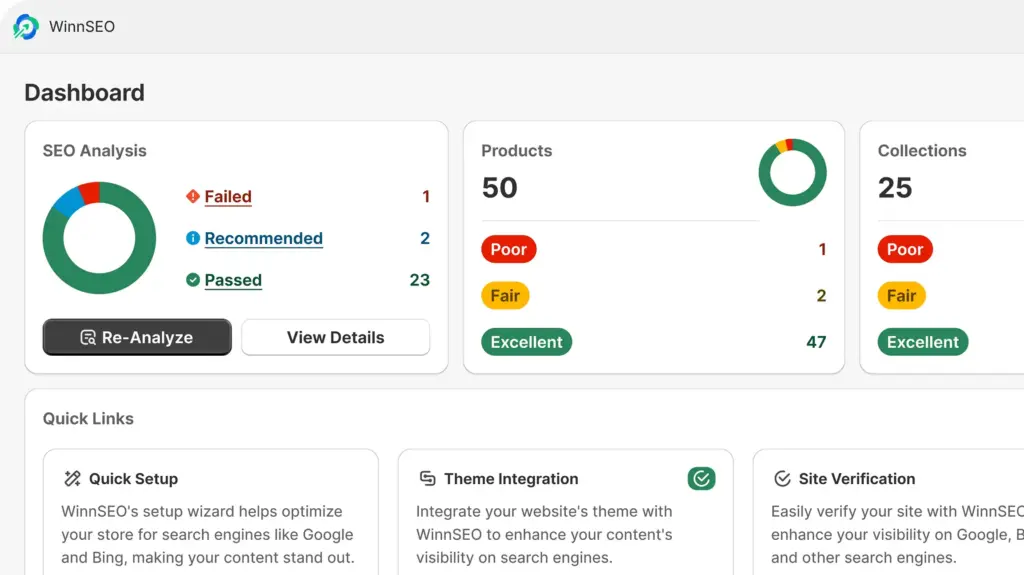
Your Homepage Settings are where you’ll find all the key tools to really perfect your website’s main page. Your “Homepage,” of course! With WinnSEO, you can even set up your homepage to look just right for search results and for each of your social media platforms.
Ready to dive in? We’ve got the steps outlined for you below!
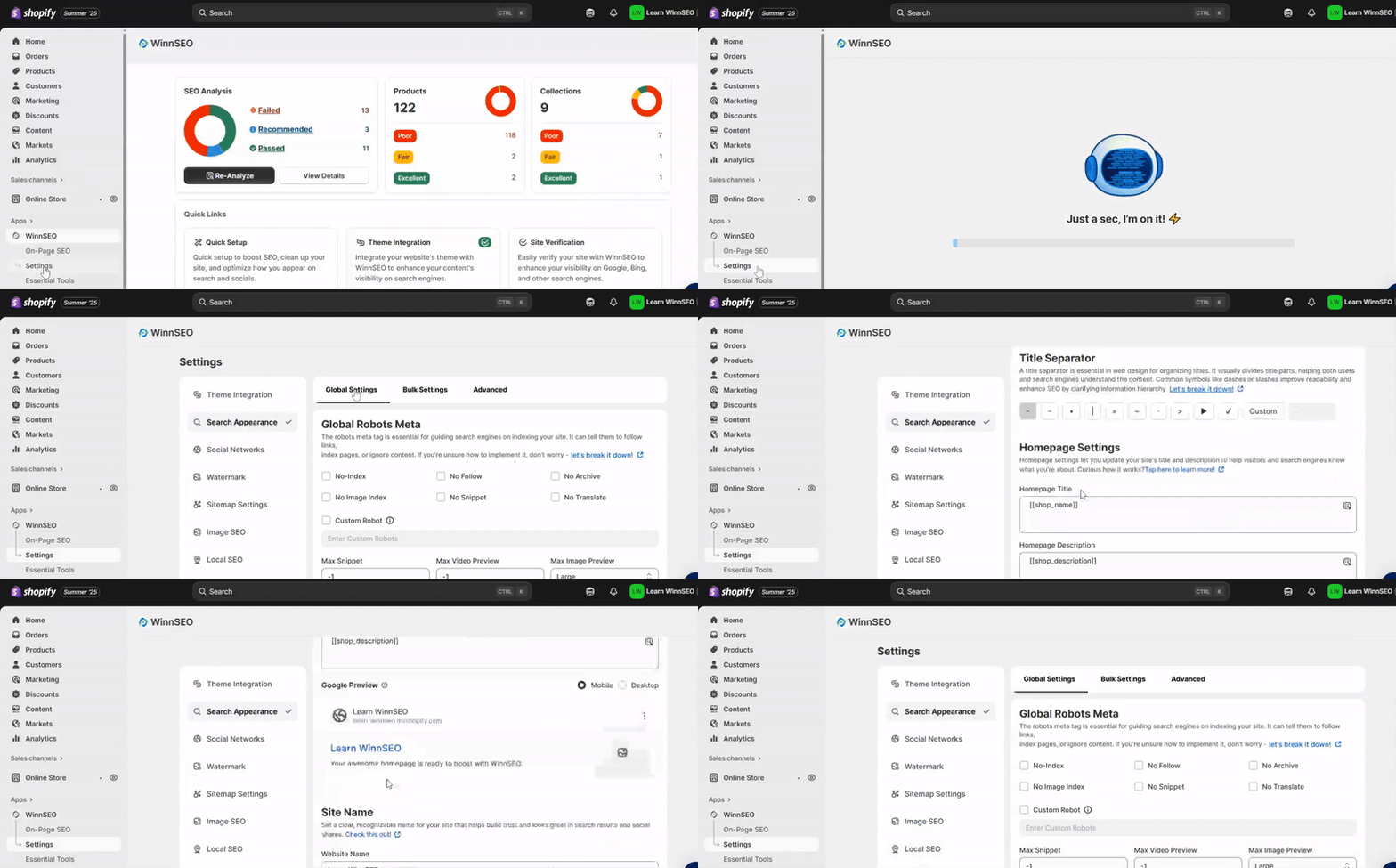
Set Up the Homepage Meta Title and Description with WinnSEO
Jump into your Shopify store and navigate to WinnSEO. Follow the steps:
- Click on the Settings option
- You’ll find “Search Appearance”
- Now, in the Global Settings tab, you have to go down to the “Homepage Settings”
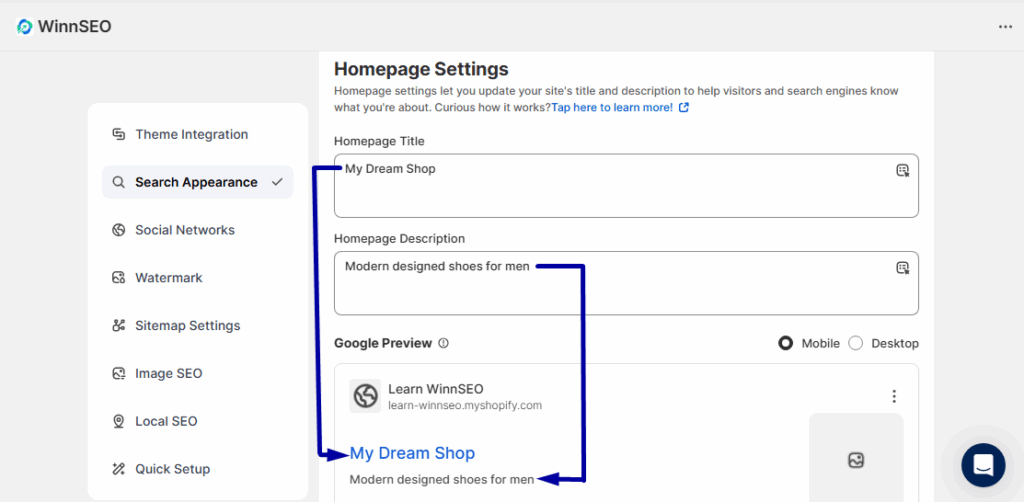
Homepage Settings of Search Appearance
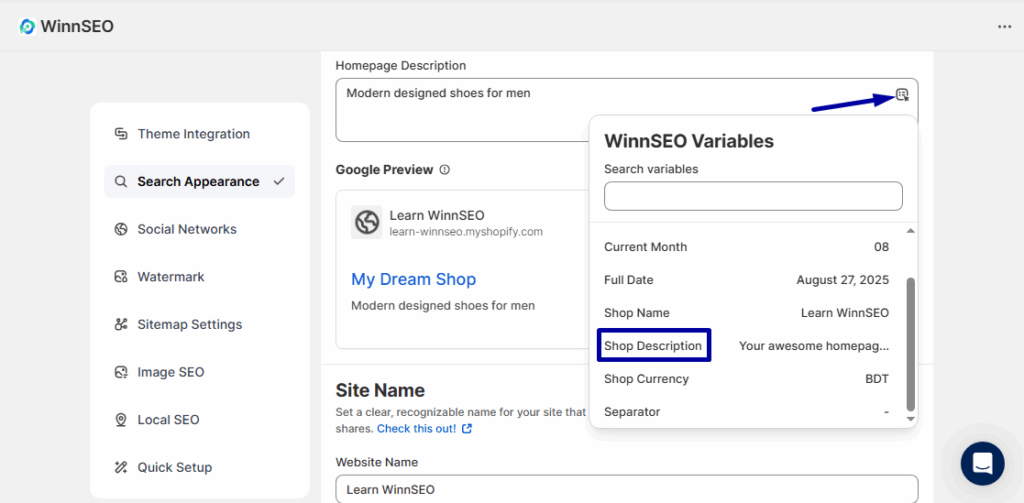
- Homepage Title: You can write any Title as you wish and see the preview below in the “Google Preview” option.
- Homepage Description: Similarly, write a description for the homepage.
Moreover, from that little dropdown menu, you can even pick cool variables for your title, like your shop name or the current year.
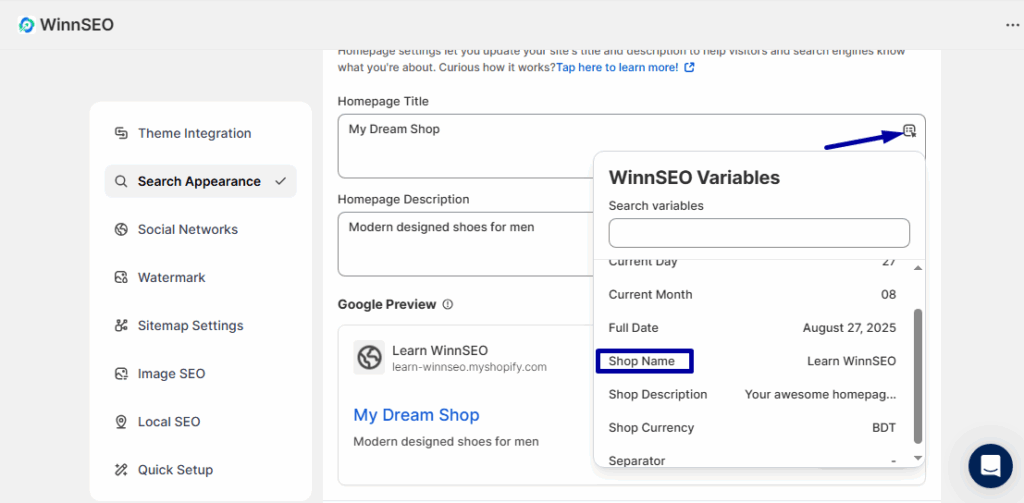
For the description field, you can use variables like the shop description.
Homepage Settings for Social Networks
Here we’ll show the steps for Facebook and Twitter.
Homepage Meta Tag Settings of Facebook
Follow: WinnSEO Settings > Social Networks > Facebook
Next, click on the Homepage Settings tab
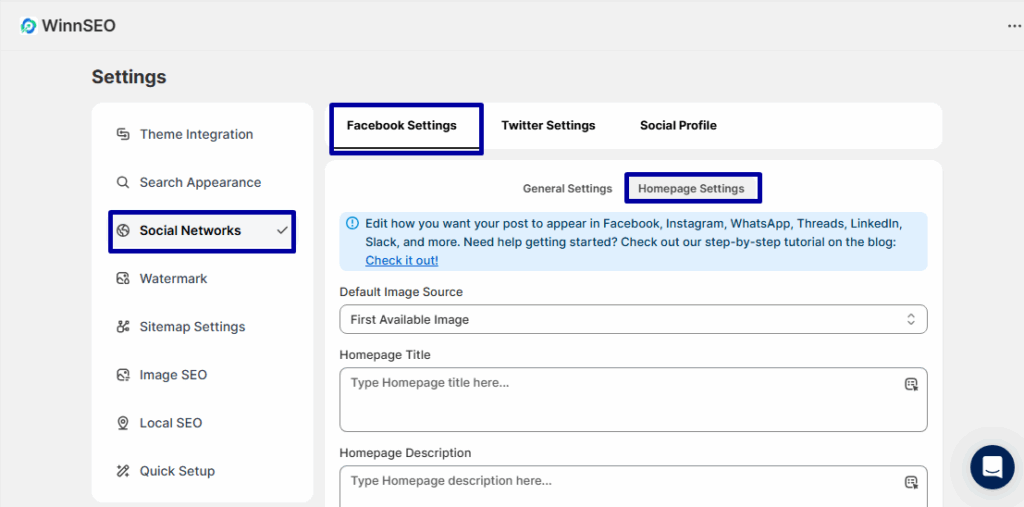
- Default Image Source: You have two options here:
- First Available Image
Select this from the dropdown if you want WinnSEO to automatically use the first available image on your homepage.

- Custom Image
If you choose “Custom Image,” you will see an area to upload an image. Later, you can change the image based on your needs.
- Use URL For Image
The “Use URL For Image” checkbox allows you to specify an image URL. If you don’t want to show the first image or set a custom image, then you can insert your desired image’s URL here.

- Homepage Title and Homepage Description settings: No matter which image source you choose, you can set the title and description for the Facebook preview accordingly.
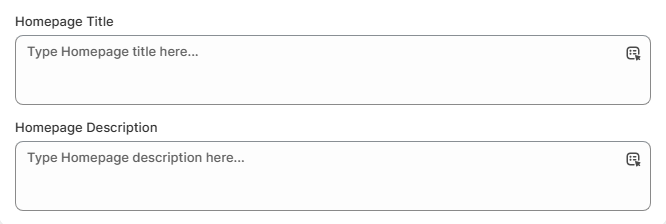
NOTE: The title, description, and image you set here will be used as the OpenGraph meta tags on your website. This means that any social networking platform using the OpenGraph protocol will display these meta tags when your homepage is shared.
Homepage Metadata Settings of Twitter
You’ll find this tab beside the ‘Facebook Settings’.
If you want your Twitter homepage appearance to mirror your Facebook settings, check the “Use Same Settings as Facebook” checkbox. However, this will disable the individual Twitter settings fields.
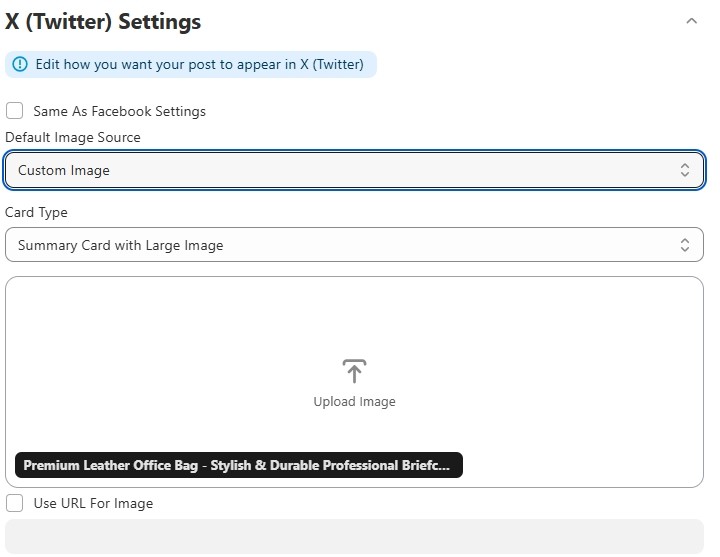
If “Use Same Settings as Facebook” is unchecked, you have the following setting options.
- Card Type: This feature lets you choose how links you share on Twitter look.
- Summary card: Shows a small image and a brief text summary of a linked webpage.
- Summary card with large image: It features a prominent, large image above the text summary of a linked webpage.
- Default Image Source: There are two ways you can go:
- First Available Image
Select this from the dropdown if you want WinnSEO to automatically use the first available image on your homepage.
- Custom Image
When you opt for this option, a section will appear for you to upload a picture from your device. This image isn’t permanent; you can always update it as your requirements change.
- Use URL For Image
- Similar to what we discussed for Facebook, this option lets you insert an image URL for your desired image.

Homepage Title and Homepage Description settings: Whatever the image source is, you can choose the title and description of your Twitter (X) preview based on your choices.
NOTE: All the meta tags will appear when you share your homepage on X (Twitter)
However, with each change you make, don’t forget to click on the ‘Save’ option, as it’s sitting right at the top.

And you’re done. Now, you can check your home page source code to make sure the meta tags are applied properly. The Hey Meta is a great tool you can use to quickly verify the meta tags.