Image file names play a crucial role in how search engines, AI models, and media crawlers interpret your Shopify product images. Clean, descriptive, keyword-rich file names help Google better understand your products, improve your image search visibility, and strengthen the overall SEO foundation of your store.
With WinnSEO’s Advanced Shopify AI SEO Agent, you can bulk optimize thousands of image file names in one click.
This guide explains why image file names matter, how WinnSEO automates the entire process, and how you can verify the improvements inside Shopify.
Table of Contents
Why Image File Name Optimization Matters for Shopify SEO
Search engines rely heavily on file names to understand what an image contains. When your images use generic names like “IMG_0012.JPG” or “product1.png”, you lose an opportunity to signal relevance.
Here’s why Shopify stores should care:
Improves Google Image Search Rankings
Meaningful file names help your products appear in Google Image results, which drives high-intent traffic.
Strengthens Product Relevance Signals
Google uses filenames to determine category, context, and intent. Keyword-rich file names boost topical alignment.
Enhances Crawlability & Indexing
Clean, descriptive filenames help search crawlers understand and categorize your product images correctly.
Supports AI Search Engines
AI systems (ChatGPT, Gemini, Perplexity, etc.) use filenames as part of their understanding of your content.
Cleaner Shopify Media Library
Bulk optimization removes random file names and brings consistency to your entire product catalog.
WinnSEO automates all of this accurately, safely, and at scale.
How WinnSEO AI Bulk Image File Name Optimization Works
WinnSEO intelligently rewrites product image file names based on:
- Product title
- Product type/category
- Keywords relevant to the item
- Visual cues detected by AI
- SEO best practices for ecommerce
The result is a clean, keyword-rich file name such as:
sony-wireless-headphones-black-design.jpg
Instead of:
IMG_4921.JPG
This optimized naming helps search engines instantly understand your product.
WinnSEO handles everything behind the scenes, no downloads, no uploads, and no manual editing required.
How to Optimize All Product Image File Names
Step 1 — Open WinnSEO
From Shopify Admin:
Apps → WinnSEO → Image SEO
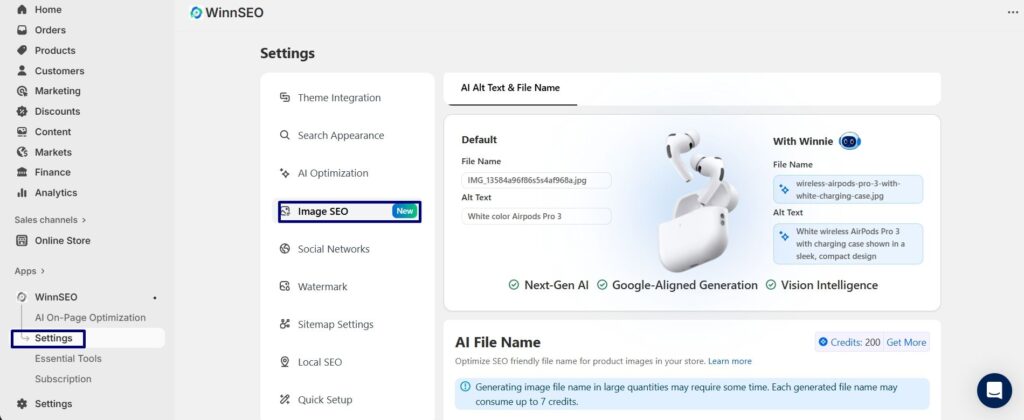
Step 2 — Select “All Product Image File Name”
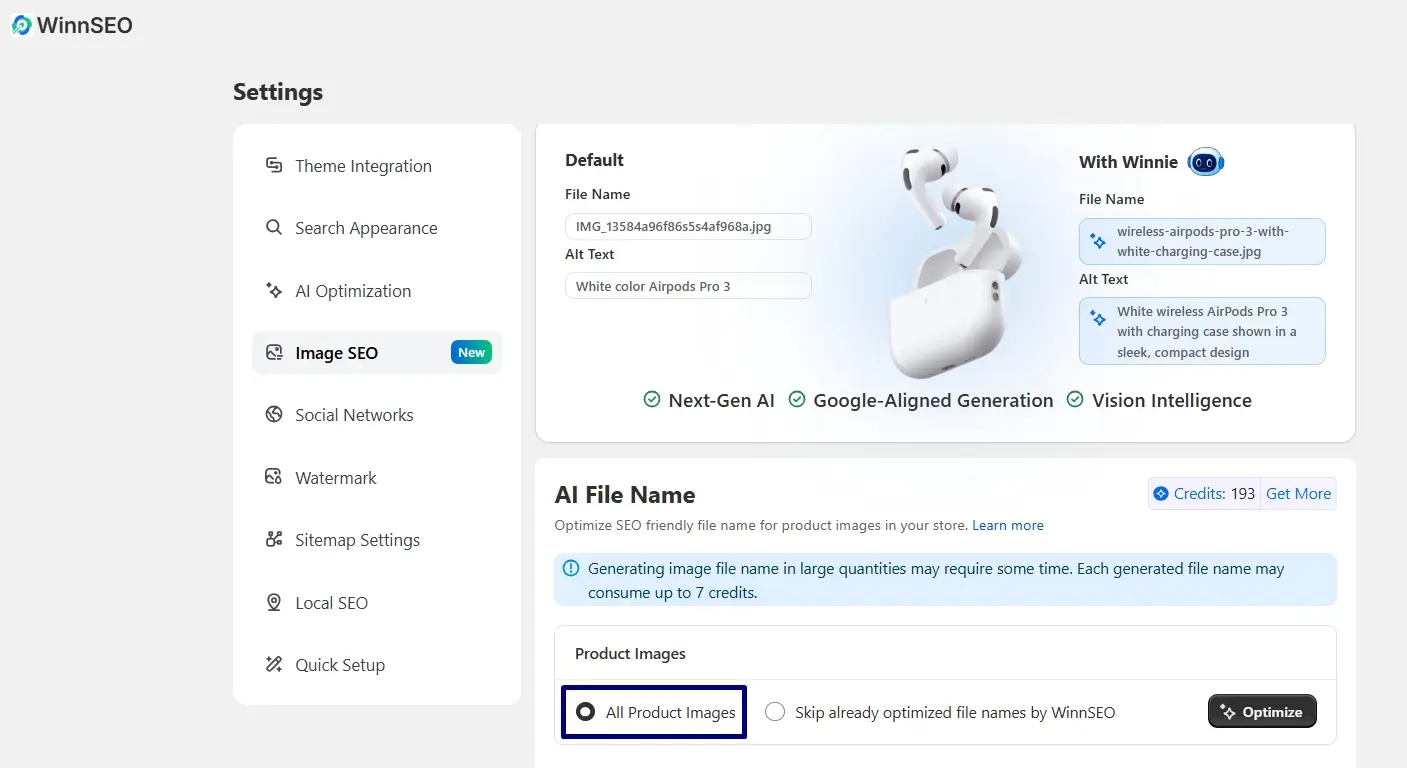
You will find this checkbox at the top of the Image SEO section.
Checking this tells Winnie to optimize every product image in your store.
Step 3 — Click “Optimize”
Once you press Optimize, the AI Agent begins analyzing and generating new SEO-friendly file names.
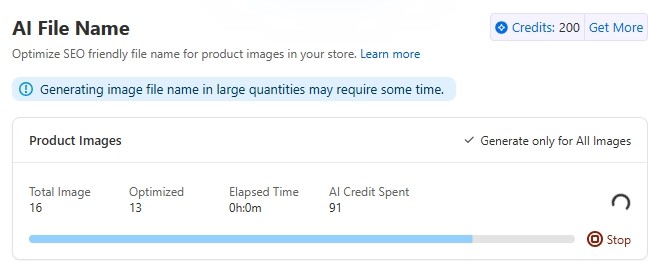
During optimization, you can monitor:
- Total number of images
- Number of optimized images
- Estimated time remaining
- AI credits required and consumed
This gives you full transparency while Winnie works.
How to Cancel Optimization Safely
If you need to stop the process at any point:
Step 1 — Click Stop Optimization
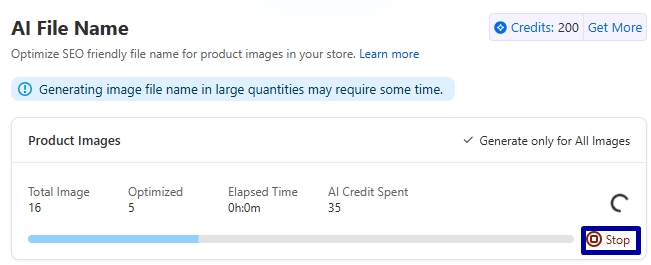
Step 2 — Press Cancel Optimization
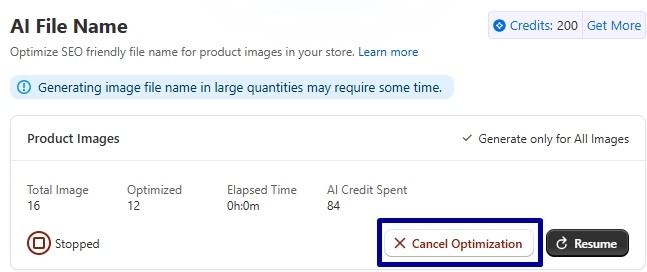
A Confirmation Modal will appear, Press “Yes, Cancel Optimization”
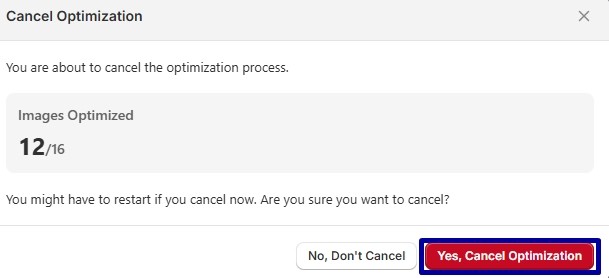
WinnSEO safely stops the process without affecting your existing filenames.
You can resume optimization anytime later.
The Optimization Process Explained
As the AI agent works, you will see a status such as:
“Optimizing Image File Names, Winnie is generating SEO-friendly filenames for your product images.”
You can leave the page or continue working in Shopify without interruption.
Winnie processes everything in the background.
When complete, the system will display:
“Completed”
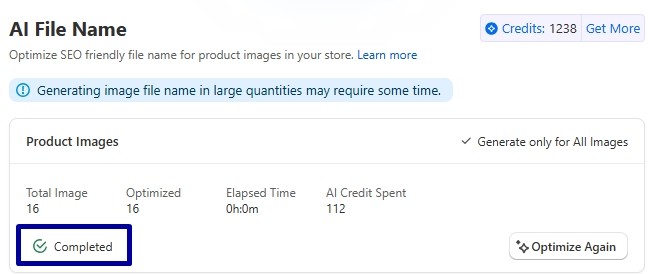
All targeted image filenames are now optimized.
How to Verify Image File Name Optimization in Shopify
You can check the new filenames directly inside your Shopify dashboard:
Step-by-step verification:
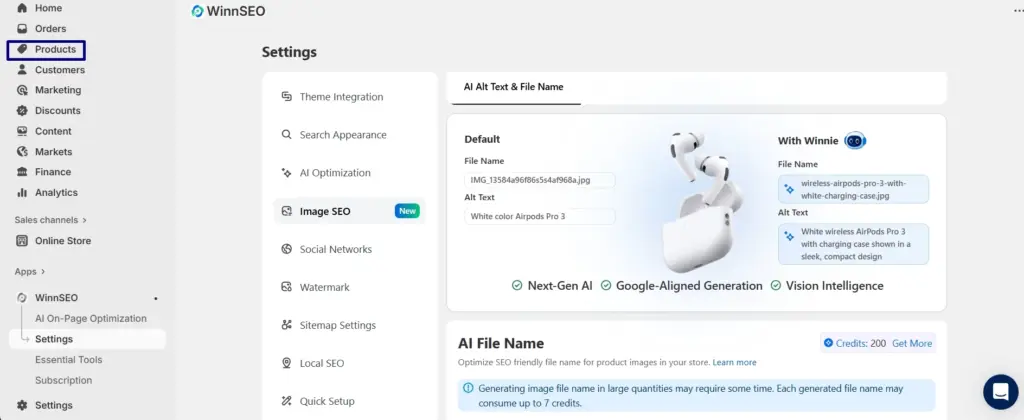
- Go to Products
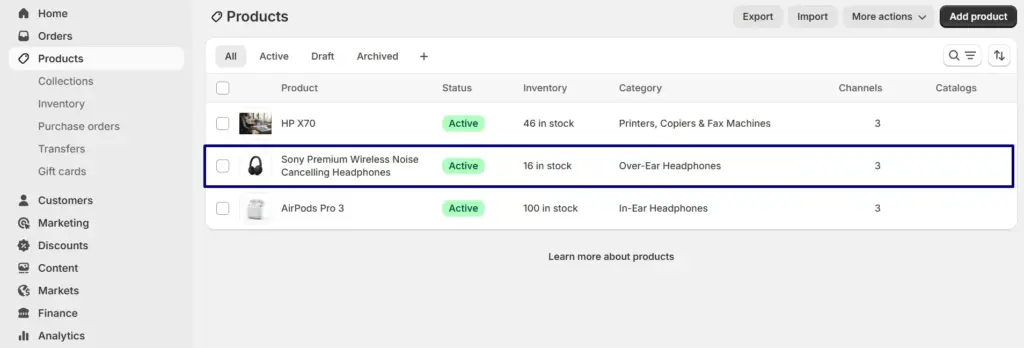
2. Open any product
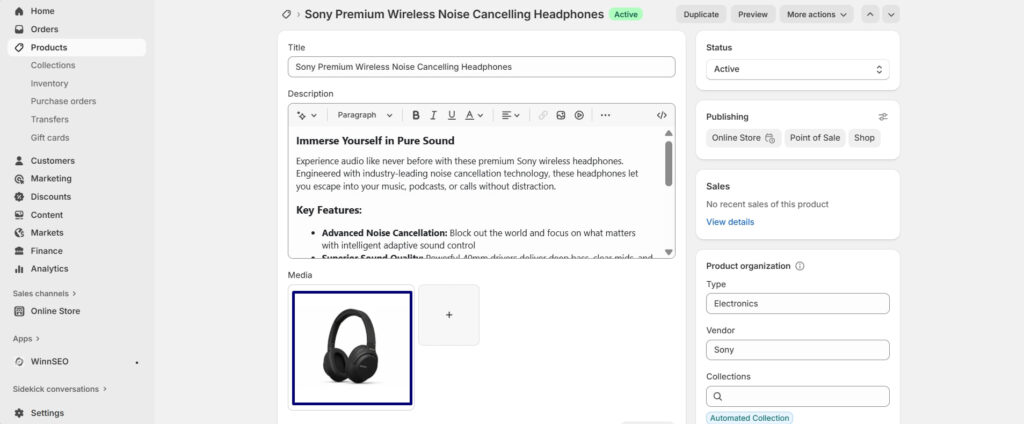
3. Click on an image
4. At the top-right corner, Shopify displays the image file name
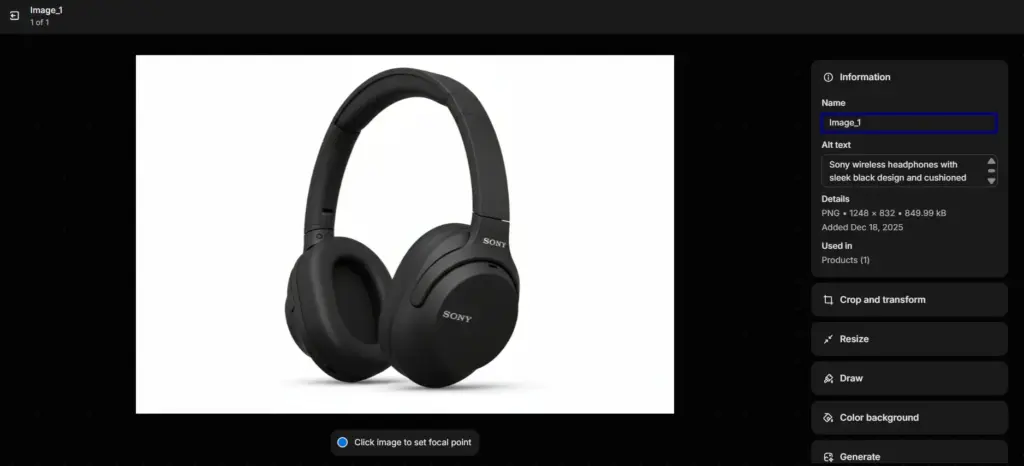
Before Optimization:
File Name: “Image 1”
After WinnSEO Optimization:
sony-wireless-headphones-black.jpg
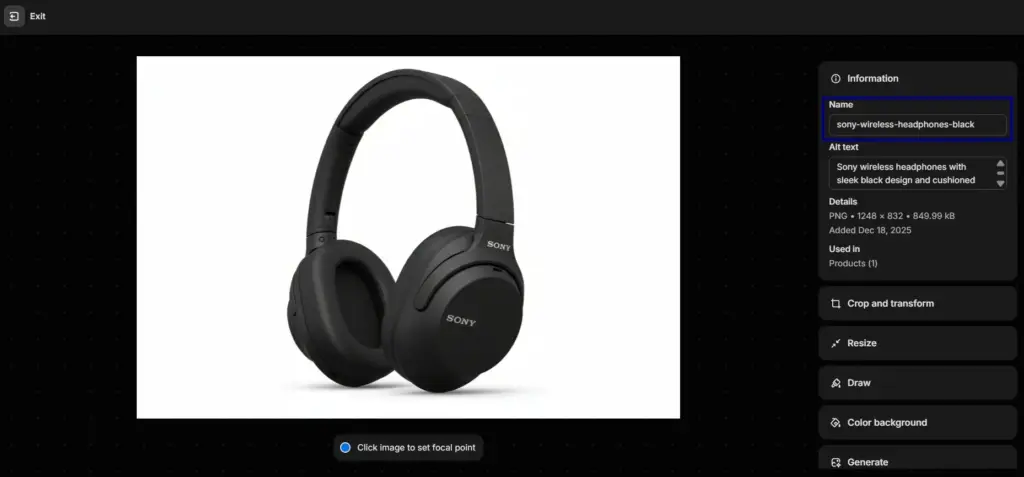
This proves the new filename has been successfully applied.
FAQ
Does optimizing file names affect SEO?
Yes, proper filenames improve Google Image ranking, product relevance, and crawling efficiency.
Does WinnSEO overwrite existing filenames?
Yes, when you select “All Product Image File Name”.
(Alt text and filenames are separate features.)
Does this use AI credits?
Yes.
Will renaming break my Shopify image URLs?
No, Shopify handles image renaming safely. URLs remain functional.
Is this safe for all Shopify themes?
Absolutely. File name optimization does not affect theme files or layout.