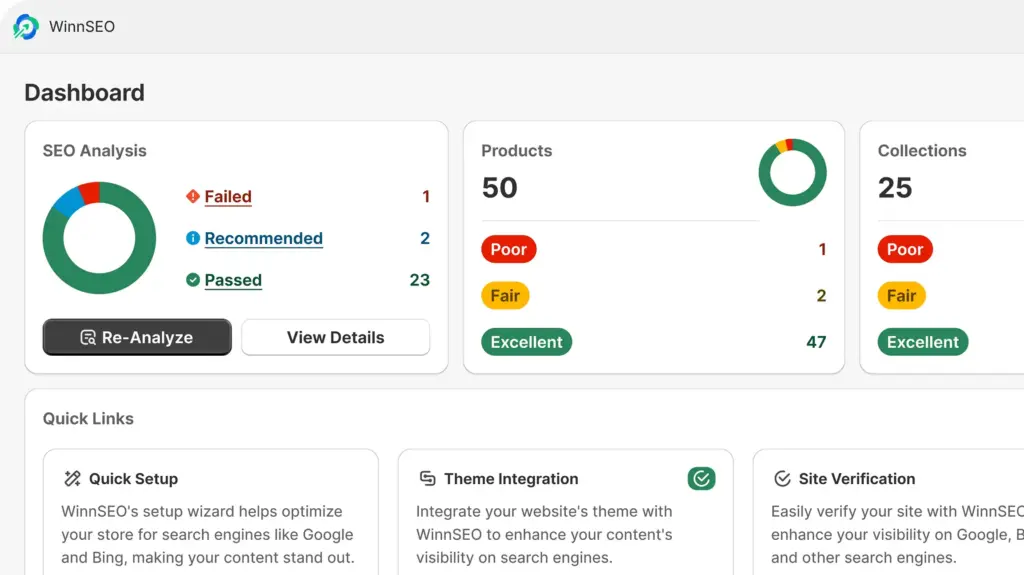
Robots.txt is a simple text file that lives at the root of your website. It tells search engine crawlers like Googlebot which pages or sections of the site they’re allowed or not allowed to access. So, basically it’s your way to guide the friendly bots through a set of instructions.
With WinnSEO, you can edit your robots.txt file effortlessly. We’ve discussed the process below; keep reading this documentation.
Why do you need Robots.txt?
Using robots.txt is a great way to optimize your site’s performance.
The little file helps keep stuff like your admin login pages or unfinished bits of your site out of Google’s search results. It also stops those busy search bots from overwhelming your website’s server. Think of it as telling them, “Hey, focus your energy on the good stuff!” Plus, you can even use it to tell them where to find your sitemap, which is like a map to all the cool pages on your site.
Does Shopify offer a Robots.txt file?
Yes, for every store, Shopify offers a robots.txt file. In fact, it automatically generates a default one. That robots.txt file is usually good enough for most shops, following common SEO best practices.
Shopify also allows you to customize the robots.txt file. You can do this by editing a special theme file called robots.txt.liquid. However, you’ll need to do it yourself or hire a professional; Shopify support doesn’t offer assistance with it.
So, we’re recommending WinnSEO. With it, you can directly edit the robots.txt file yourself without any hassle.
How to Edit Your Robots.txt With WinnSEO
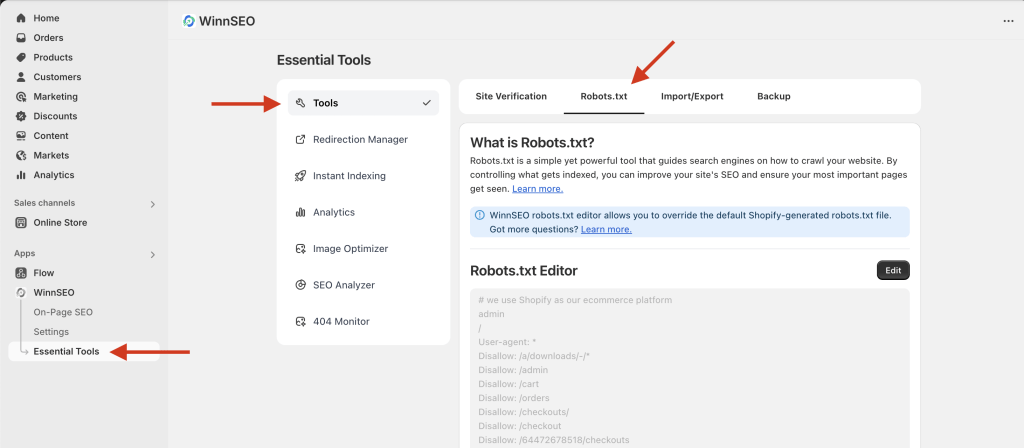
In your Shopify admin, navigate to WinnSEO
- Find and click on “Essential Tools”
- Click on “Tools”
- Select the “Robots.txt” tab
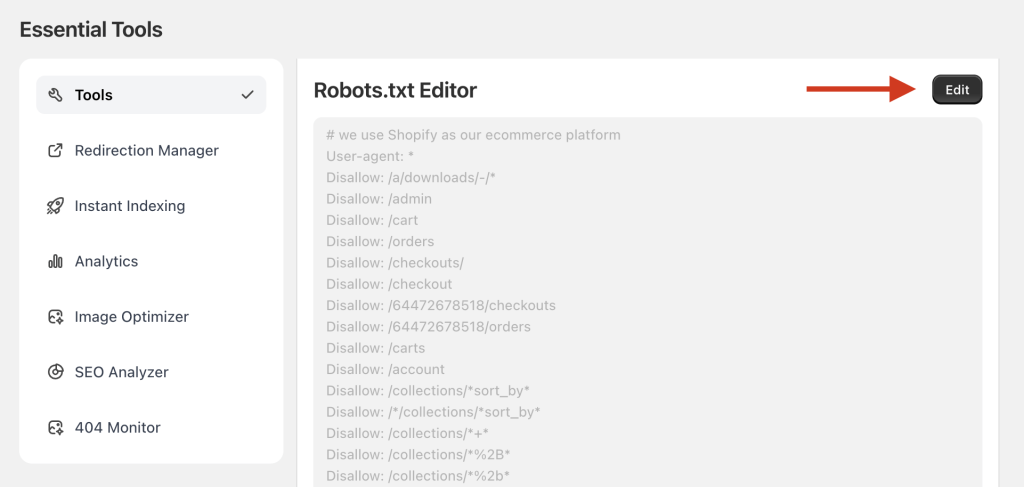
In the “Robots.txt Editor” section, click the “Edit” button.
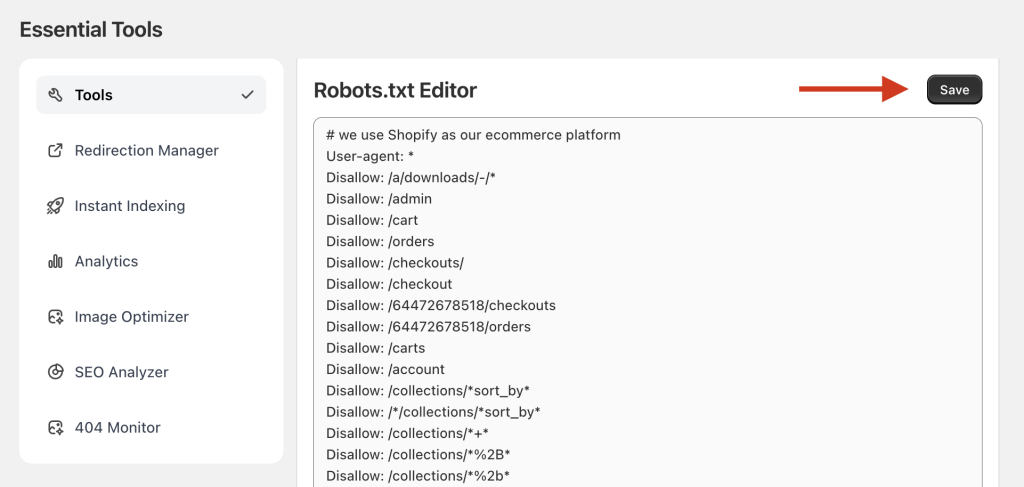
Type your custom robots.txt rules into the text area, then click the “Save” button.
Finally, you have to refresh the page, and you can see the changes. It’s just as easy as that.
Common robots.txt rules for Shopify
Now, we’ll introduce you to some common and useful robots.txt rules and terms. Then give a few examples for clarification.
| Term/Rule | What It Does |
| User-agent: | Identifies which web crawler the following rules apply to. |
| Disallow: | Tells the bot not to crawl a specific path, directory, or file. |
| Allow: | Grants access to a specific item within a blocked area (an exception). |
| # | Marks a line as a comment; bots ignore it. |
Here are some applications of the rules:
Block the entire website
You can definitely tell all bots to disallow crawling of your entire Shopify website by adding just two lines to your robots.txt file:
User-agent: *
Disallow: /
Block a specific page
Here’s how to tell bots to stay out of specific parts of your site. It’s usually a combination of saying “who” (the bot) and “what” (the part of your site).
User-agent: *
Disallow: /pages/private-info-page/
(This tells all bots to ignore a page at /pages/private-info-page/)
Block an entire folder/directory
Want to keep bots out of a whole section? Well, this is usually already in Shopify’s default robots.txt, but it tells bots to avoid your admin area. Here’s how to tell them to skip an entire folder.
User-agent: *
Disallow: /admin/
Block internal search results
Another one is often in Shopify’s default. It prevents bots from crawling endless internal search result pages. If you don’t want bots indexing your site’s own search pages, apply this rule to keep them clean.
User-agent: *
Disallow: /search
Block pages with specific parameters (like filters)
This is super useful! It stops bots from crawling pages created by sorting or filtering options, which often create duplicate content issues.
User-agent: *
Disallow: /*?sort_by=*
Block a specific AI chatbot
You might prevent AI bots from crawling your site to protect your unique content from unauthorized use in training AI models. If the AI chatbot has a known User-agent string (e.g., “ChatGPT-User-agent” or “Google-Extended”), you could target it specifically:
User-agent: ChatGPT-User-agent
Disallow: /
Now edit your robots.txt file
Hope you can apply the rules and validate accordingly now.
Just be very, very careful with this! Using Disallow: / means search engines won’t crawl any of your pages, which will cause your entire website to disappear from search results. This is usually only done for sites that are under construction, truly private, or not meant to be found by search engines at all. So think deeply before you hit save on that one!