Writing great blog posts is one thing, but optimizing them for SEO? That’s where things can start to feel like a chore. Luckily, WinnSEO’s AI Optimization take that stress off your plate. It helps your posts shine in search results and get more clicks; all while saving you a ton of time.
Let’s see how it works and how you can make it your new secret weapon.
Table of Contents
Getting Started with WinnSEO’s AI for Blog Posts
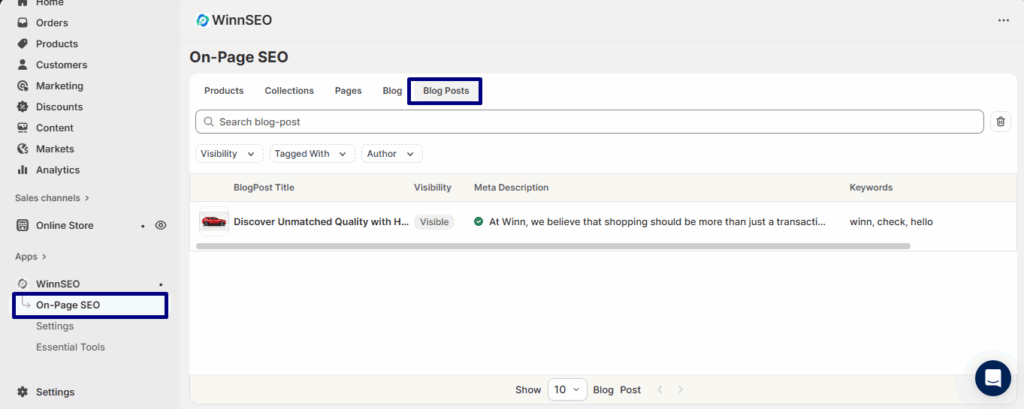
Head over to your On-Page SEO section inside the app. You’ll see all your blog posts listed out neatly.
Select Blog Posts
Click on any post you’d like to optimize; maybe it’s your Discover Unmatched Quality with Heart and Purpose. That’ll take you straight to its AI Optimization page.
Suppose you’ve landed on the Discover Unmatched Quality with Heart and Purpose blog. Great choice! Just click the Winnie icon to optimize it. This is super quick and effortless!
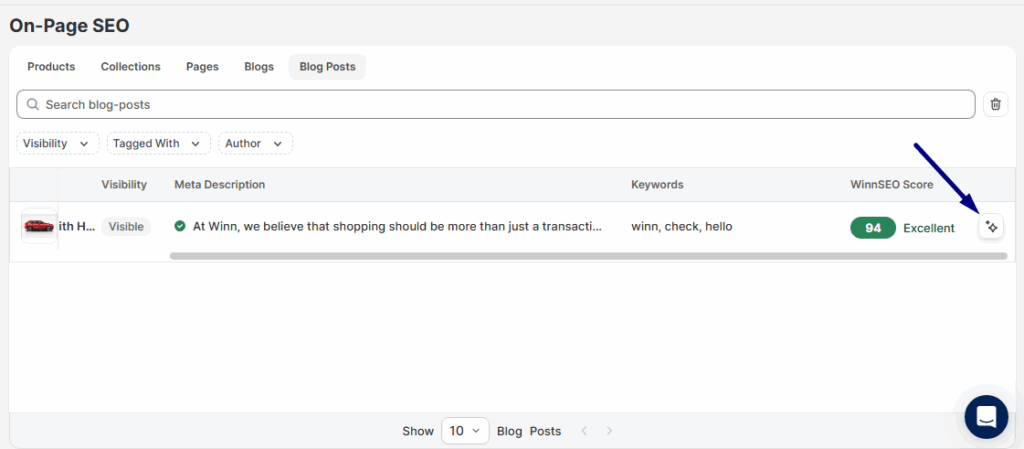
Want to explore the settings yourself? Just click on the product, and you’ll be taken straight to its AI settings screen.
Exploring AI Settings
Once you’re in the On Page editor, you’ll spot AI Optimization right at the top. That’s where the magic happens! You can pick exactly what you want to create:
- Meta Title & Description, Keywords: Get SEO-smart titles, descriptions, and keyword ideas.
- Product Title: Generate a catchy, optimized product name.
- Product Description: Craft a clear, engaging, and SEO-friendly description.
- Product Handle: Create a clean, search-friendly URL.
Your AI Settings at a Glance
Right at the top of the editor, you’ll spot the AI Settings panel. This is where the magic begins.
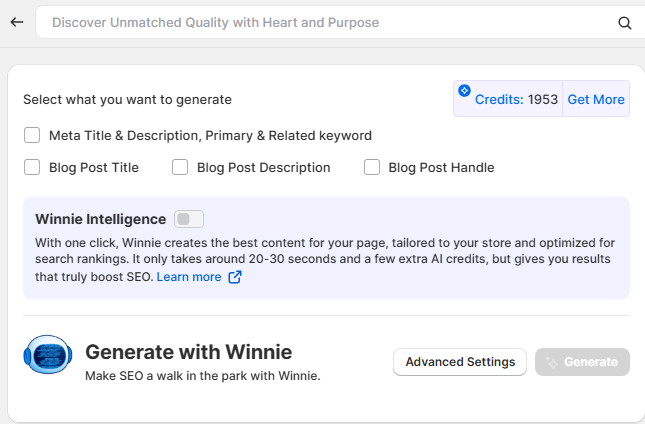
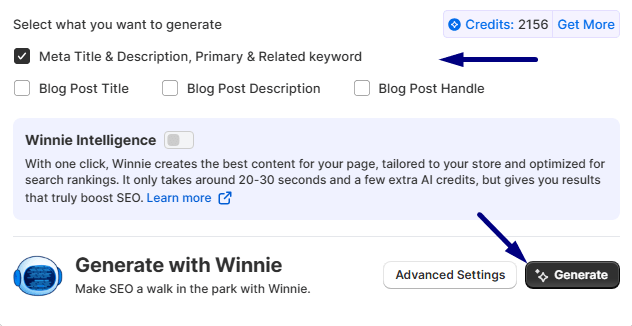
Just pick what you want the AI to generate. For instance, you need to generate the Meta Title & Meta Description, Primary & Related keyword, so select the box and hit Generate.
Boom. Your SEO essentials are ready in seconds.
Here’s your generated result.
How to Make the Most of Your Results
Apply All: Happy with what Winnie created? Hit Apply All and let those shiny new titles, keywords, and descriptions instantly replace your old ones. Boom! optimized!
Generate All Again: Not vibing with the current mix? Hit Generate All Again, and Winnie will cook up a brand-new set of ideas for you to try.
Go Back or Start Fresh
Load Previous: Made a change you regret? No biggie! Hit Load Previous to rewind and get your old suggestions back.
Discard: Want a total do-over? Discard wipes the slate clean so you can start fresh with zero clutter.
Take It Up a Notch with Advanced Settings
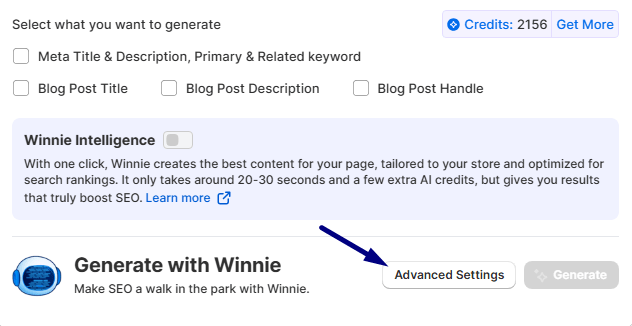
Want your AI-generated content to sound more like you? Click into Advanced Settings and customize away.
So, what can you actually do here? Advanced Settings let you tweak the tone and language to match your brand’s voice, target a specific country or audience, and even set your preferred content length. You can define your target audience, highlight your post’s purpose, and leave a few custom notes to guide the AI. The result? Content that sounds genuine and perfectly on-brand, never robotic.
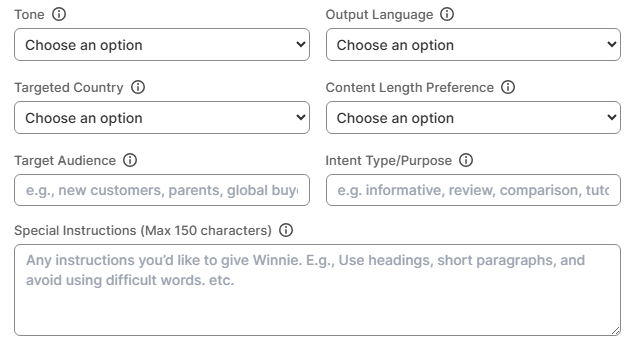
NOTE: Use Advanced Settings only if you’re confident in crafting effective prompts and understanding AI behavior. Selecting mismatched tones or audience types can result in off-brand, inaccurate, or low-performing outputs..
Meet Winnie Intelligence
Winnie Intelligence is the brain behind it all, your personal SEO assistant that never gets tired. It hunts down the best keywords, creates catchy titles, and writes SEO-friendly contents that actually sound good.
Basically, Winnie handles the boring parts so you can stay focused on creating awesome content.