When you share your content on X (Twitter), you want it to look its absolute best, right? The X (Twitter) settings are all about making sure your links pop! With WinnSEO, getting your shares to shine on Twitter is super simple.
Let’s dive in and get those settings just right!
Table of Contents
Twitter Settings
- Navigate to Settings under WinnSEO App
- Click Social Networks
- Select Twitter Settings
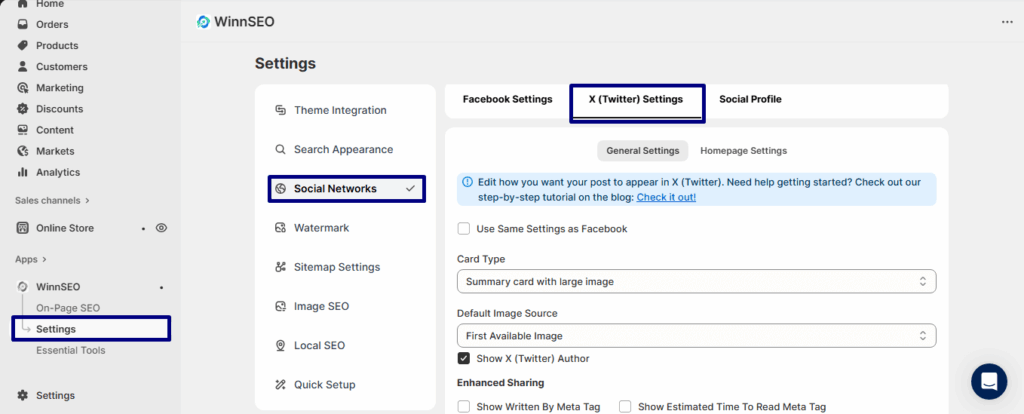
WinnSEO keeps your Twitter settings nicely organized! You’ll find two helpful areas to customize things for your tweets: General Settings and Homepage Settings.
Twitter General Settings
This is your go-to spot to control how most of your shared links and images appear in tweets.
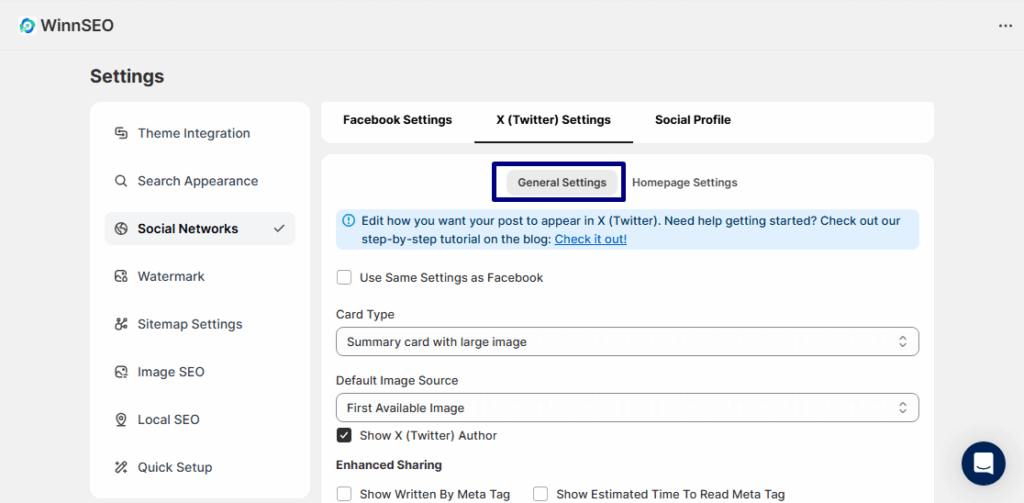
Use Same Settings as Facebook
Just copies your Facebook settings over. It’s super quick!

Card Type
This sets the style of your Twitter preview. You can choose just a small preview or a bigger one with an image.
Summary card with large image: Same as a summary card, but with a much bigger, eye-catching image!

Summary card: A neat, compact way your shared link looks, with a small image.

Default Image Source
Let’s choose a fallback image. You’ve got a few handy options to choose from below, just go with the one that feels right for you.
- First available image: Your site will just grab the first picture it finds on your page, easy.

- Custom image: You get to select your desired picture to show when your link is shared.
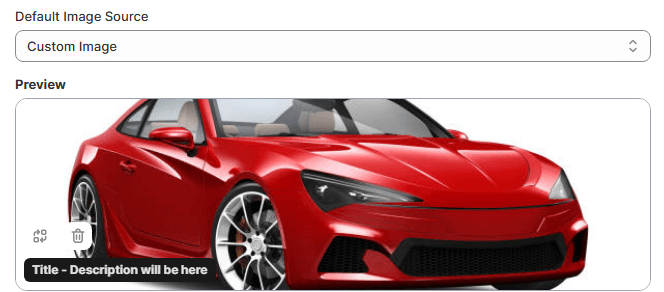
Use URL For Image
It lets you add an image just by pasting its link.

Show X(Twitter) Author
Let’s people see your Twitter handle right on the shared post.

Enhanced Sharing
These settings are for your blog posts. Slack automatically creates neat link previews from your page’s existing info. And if you tick the boxes below, it’ll even add the additional information accordingly.
- Show Written By Meta Tag: Enable this option, and it’ll put the author’s name right there in the shared info.
- Show Estimated Time To Read Meta Tag: Shows how long it might take to read your content.

Twitter Homepage Settings
Alright, let’s jump into the Homepage Settings for your X (Twitter).
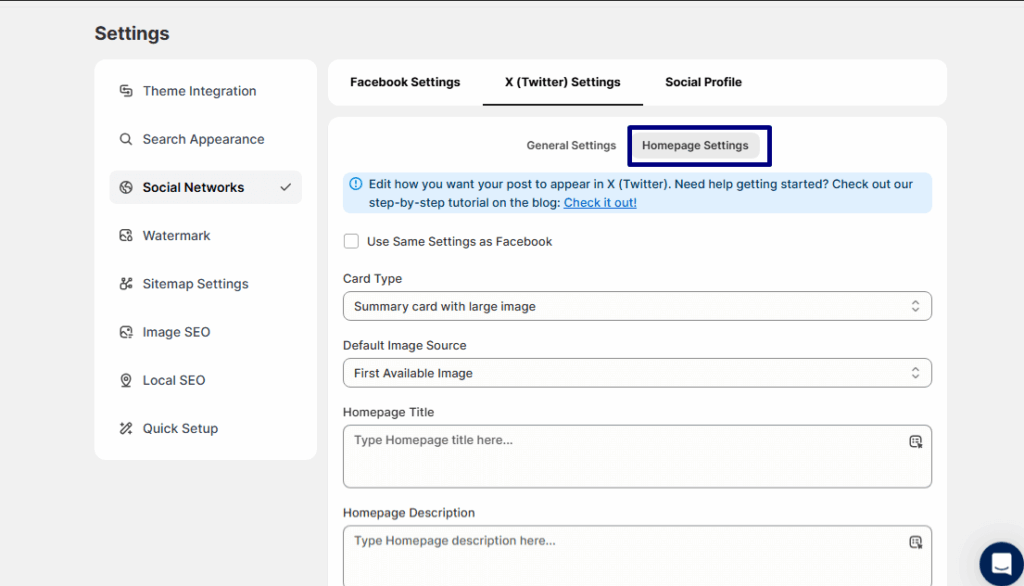
Card Type
This decides how your tweet preview will look. You can keep it simple and small, or go bigger with an image.
Summary card with large image: A summary card, but upgraded with a big, bold image that instantly grabs attention.
Summary card: A simple, compact preview with a smaller image that keeps things neat and tidy.
Default Image Source
Same deal as General Settings: two options for you!
- First Available Image: It just automatically grabs the first picture.
- Custom Image: Pick the perfect picture to represent your homepage when it’s shared on Twitter.
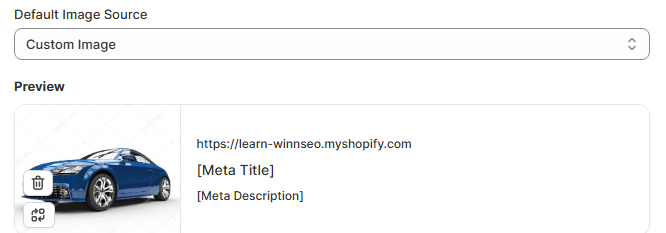
- Use URL for Image: If you want to set any particular picture from online, just paste that link here, and your image will be all set
Homepage Title
You have to write a nice headline that pops up when your homepage gets tweeted out.

Homepage Description
It’s basically a tiny description that tells everyone the gist of your homepage.

That’s all! Go ahead and impress everyone with your posts on Twitter.