
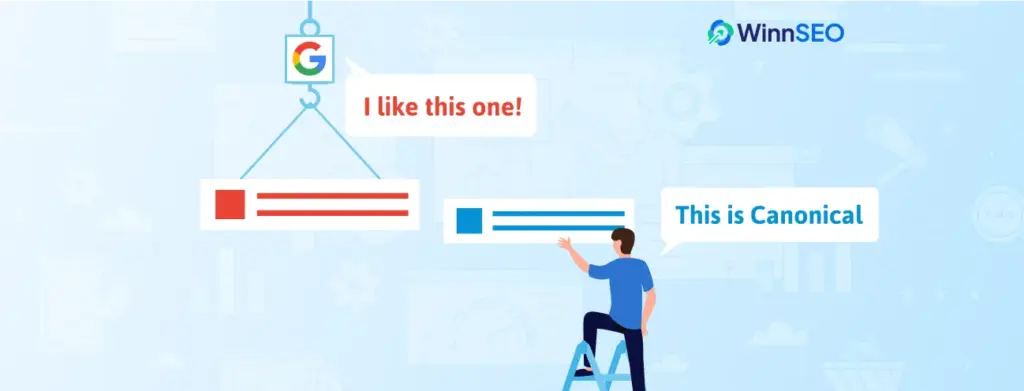

“Duplicate, Google Chose Different Canonical than User” message in Google Search Console might seem slightly scary. But, don’t panic! It’s technical and often fixable.
Understanding the message clearly will remove your confusion. Let’s break it down in this article.
Table of Contents
What’s a Canonical Tag?
A canonical tag is like a signal or direction for Google. If you have a few pages with similar content, you inform Google like, “Hey, this is the main one. Index it!” It helps avoid duplicate content issues.
Imagine your blog has a popular article. And you can access the article via two slightly different URLs: yourdomain.com/my-latest-articleA, yourdomain.com/my-latest-articleB
The content on both URLs is exactly the same. Now you want that yourdomain.com/my-latest-articleA is the primary URL. So, you need to add the following canonical tag to the HTML code of both yourdomain.com/my-latest-articleA and yourdomain.com/my-latest-articleB:
<link rel=”canonical” href=”https://yourdomain.com/my-latest-articleA”>
Clear the core concept of canonicalization, explore: What is canonicalization by Google
Why Should I Care “Duplicate, Google Chose Different Canonical than User”?
Google Search Console signals aren’t something to ignore. “Duplicate, Google Chose Different Canonical than User” means Google hasn’t picked your main URL, instead, it selected a different URL of a similar page. Like it got confused and said, “Nah, I like this other one better.”
If you don’t work on this issue, it can hinder your preferred page from ranking. Eventually, it can mess up your SEO.
Why Does Google Do This?
Well, Google’s not trying to be difficult, and the reasons are very logical. Check these out:
- Maybe Google thinks another page on your site covers the topic in more detail.
- Example: You have a general product page and a complete individual page for a particular model. Google might be confused here!
- It can be a technical issue. Your canonical tag might be set up wrong.
- Example: A typo in the URL in your canonical tag.
- Do you know how you interact with different pages gives Google signals? Yes, Google might see that users prefer a different page to pick.
- Also, the duplicate content issue is real. If multiple URLs on your website have the same or very similar content, Google might choose one as the canonical and ignore the others.
I’ve Got the Warning. Now What?
It’s absolutely normal that “Duplicate, Google Chose Different Canonical than User” might have happened to you.
Let’s dig deeper:
Find the Offending URLs
When Google Search Console provides you with this message, it isn’t just telling you there’s a problem. It’s indicating directly at the specific web addresses involved. Take note of both URLs:
→ the main version or your declared canonical that you told Google to pick
→ the one Google decided was the main version or Google-selected canonical.
This is your starting point for investigation.
Now Compare the Pages
Open both of those URLs and check carefully. Are they truly identical?
Even if you see them duplicate, Google will spot the small differences. Better to consider things like slight variations in text, image sizes, or even the order of elements. This analysis is important for understanding why Google might have made its canonical choice.
Are they Really Different?
Now, if you found that the two URLs have slightly different content, then ask yourself –
– Which version is truly the best and most comprehensive for your users?
– Does Google’s choice make sense from a user’s perspective?
Decide on your main content, which is clearly superior, and consider making the other one a redirect to it. We’ve discussed more about redirection below.
Moreover, if both the contents are valuable but different information, you might need to think about consolidating the content into a single and stronger page.
Check Your Canonical Tags
This is where you stay conscious about giving Google a clear signal.
Go into the HTML code of your originally intended canonical page. Usually, you’ll find it by right-clicking and selecting “View Page Source”. Find <link rel=”canonical” href=”…”> tag within the <head> section. Look twice for:
- Typos: A tiny mistake in the URL can also confuse Google.
- Correct URL: Make sure the URL in the tag is the exact URL of the page you want to be the main one.
- Placement: It must be in the <head> section. If it’s in the <body>, Google might ignore it.
- Multiple Tags: There shouldn’t be more than one canonical tag on a page. Otherwise, it’ll seem like conflicting instructions to Google. It won’t know which one to listen to.
- HTTP Headers: Often, canonicals are set in the HTTP headers in PDFs or other non-HTML files. You’ll need to check your server configuration for these.
Another COOL Way
Who doesn’t like an effortless fix of any error? Well, if you’re that person, then you might love using a tool like WinnSEO. It automatically includes self-referencing canonical URLs on your pages. This means that by default, each page tells Google that it is its own preferred version.
So, to fix “Duplicate, Google Chose Different Canonical than User”, you can choose a different canonical URL for the affected pages, which can be done from WinnSEO.
Install WinnSEO in your Shopify store.
Now follow the below steps:
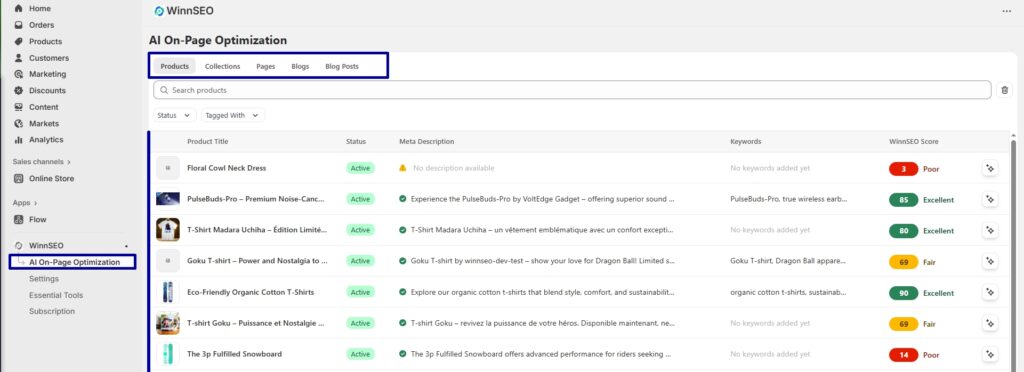
- Navigate to the “On-page” section under WinnSEO
- Choose your desired product
Scroll down to the “Advanced” tab & find the “Canonical URL” field.
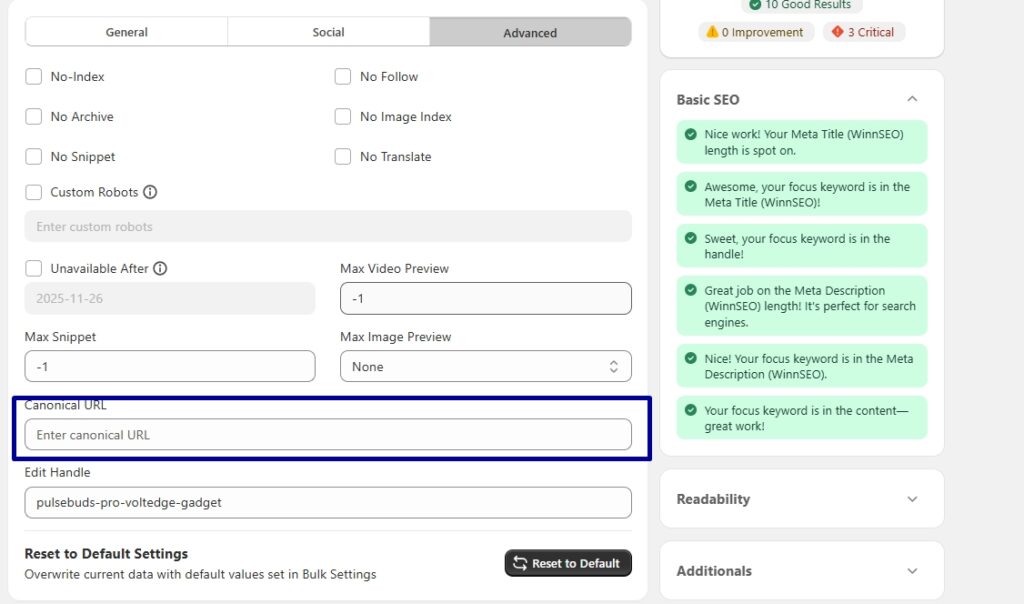
This is how easily you can tell search engines which version of the product page you want them to prioritize.
Look at Internal Links
Imagine your website as a network of roads. Are you sometimes pointing the internal links to the non-canonical version? Then you’re sending mixed signals to Google.
Re-check that your internal links are consistently pointing to your preferred canonical version of the page. The navigation menus, in-content links, and any other internal links must be directed to the main version to get Google’s attention to your desired main page.
Check External Links
Cross-checking the external links is also important.
We understand you have less control over this, but it’s worth seeing which version of your page other websites are linking to. If a significant number of reputable websites are linking to the Google-selected canonical, it means that Google might consider that version as more authoritative or popular across the web. This doesn’t automatically mean Google is right, but it’s another piece of the puzzle to consider.
Consider Redirects (301)
Done with the other investigation? Now, if you agree with Google’s choice of canonical, or if you’ve decided that the Google-selected page should be the main one, then using a 301 (permanent) redirect is a good decision.
Remember, you have to use the 301 redirect from your originally intended (but now incorrect) canonical URL to the Google-selected one.
Like you’re telling Google, “Hey, this page has permanently moved to this other address.”
Shopify shows how to handle URL redirects for a better website.
Check it: Creating and managing URL redirects
Wondering how redirects affect your SEO? Understand: Redirects and Google Search
When Google’s Wrong: How to Fight Back?
If you’re sure your canonical is correct, double-check everything one more time. Then, keep an eye on Google Search Console to see if things improve. It might take a little while for Google to re-evaluate, so be patient.
Key Takeaways
Don’t freak out seeing “Duplicate, Google Chose Different Canonical than User” message. As we’ve discussed clearly, it’s usually fixable. You can take steps to get things back on track and improve your website’s SEO. Let’s revise the things for you –
- Canonical tags are important.
- The “Duplicate, Google Chose Different” warning isn’t always a disaster, but you should investigate it.
- Consistency will greatly facilitate you.
Also, don’t forget, clear communication with Google is key.