Welcome to the centre of efficient SEO management with WinnSEO’s Bulk Settings! This powerful suite of features is designed to help you quickly and easily control how your website’s various pages, products, collections, etc., appear across search engines, and social media platforms.
Here we’ll discuss how you can control products bulk options to boost your SEO efforts!
Table of Contents
Adjust Bulk Settings with WinnSEO
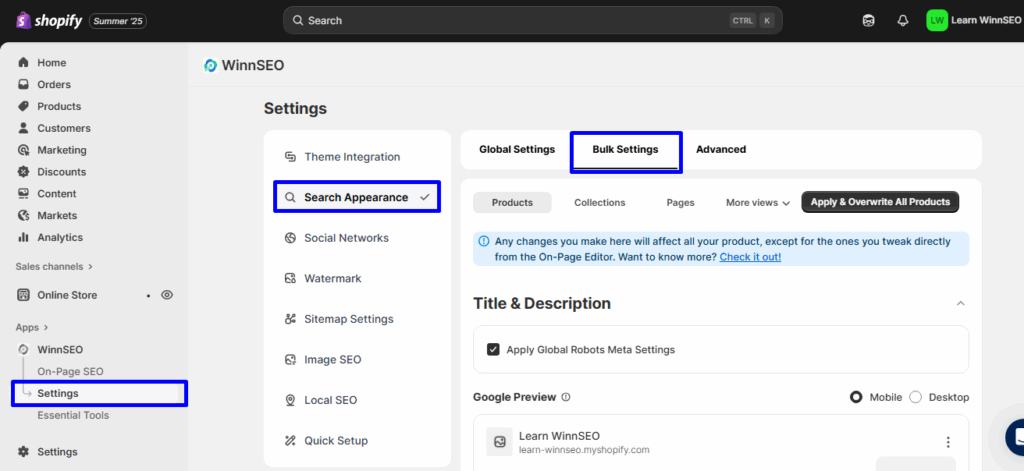
You can control your products, collection, page, blog and blog post from here. So, let’s kick things off by finding that Bulk Settings button.
-
- Within the WinnSEO app menu, click on Settings
-
- Navigate to Search Appearance
-
- Find the “Bulk Settings” tab
Products Bulk Settings
Ready to optimize your products and grab more attention? Here you go.
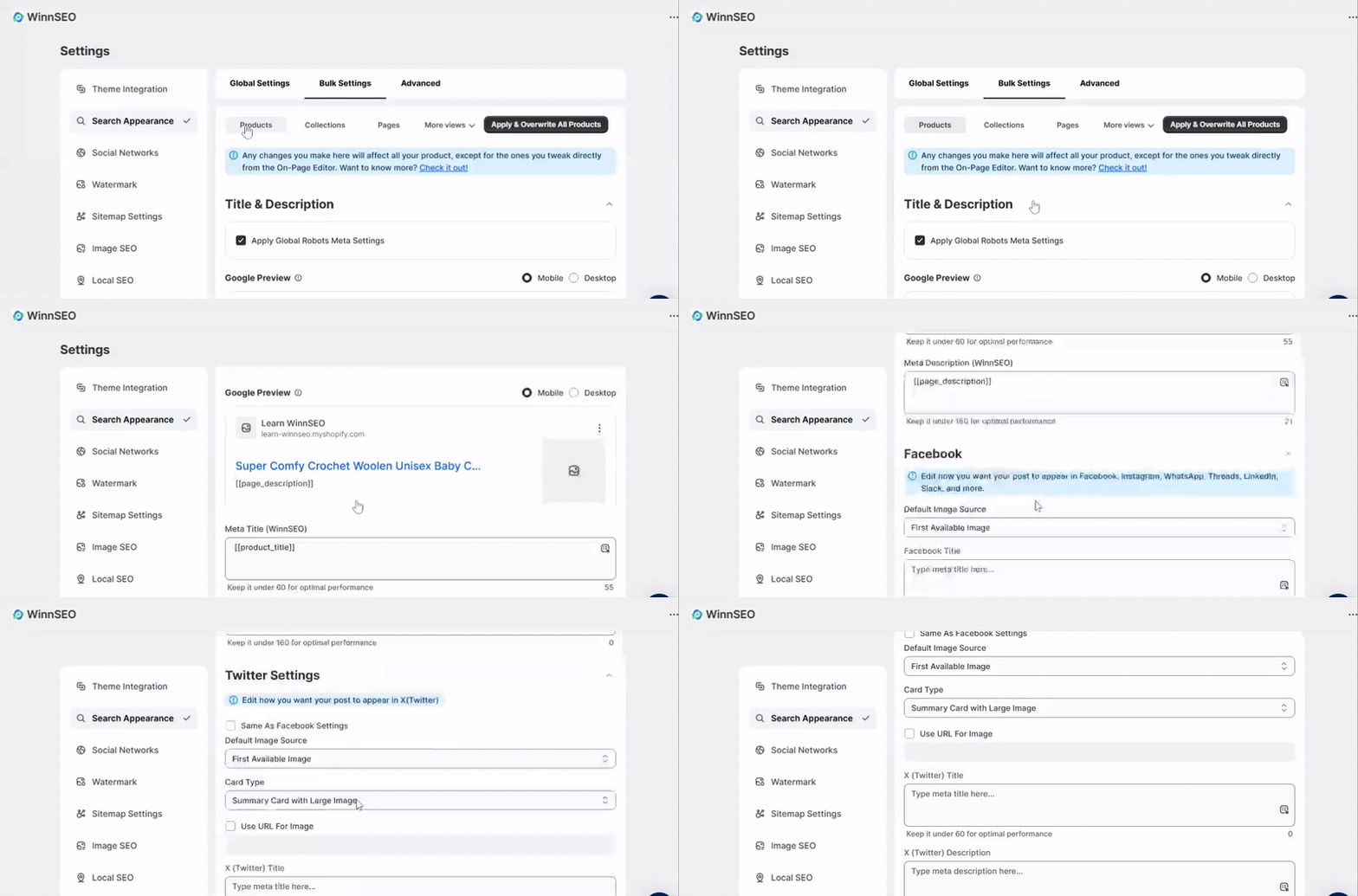
A Quick Note For You: But hey, if you click the Apply & Overwrite All Products button, it’s chilling up there in the top right, it will reset all existing post types and then apply the current Bulk settings across all products.
Title & Description
Here, in the Title & Description section, you’ll find “Apply Robots Meta Settings” option is enabled.
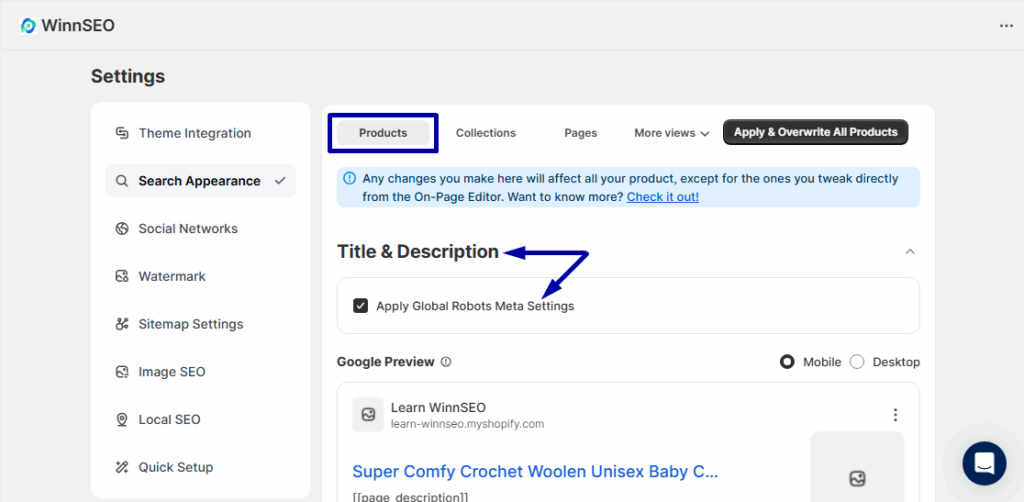
If you disable “Apply Robots Meta Settings” option yu’ll see the box with meta tag settings.
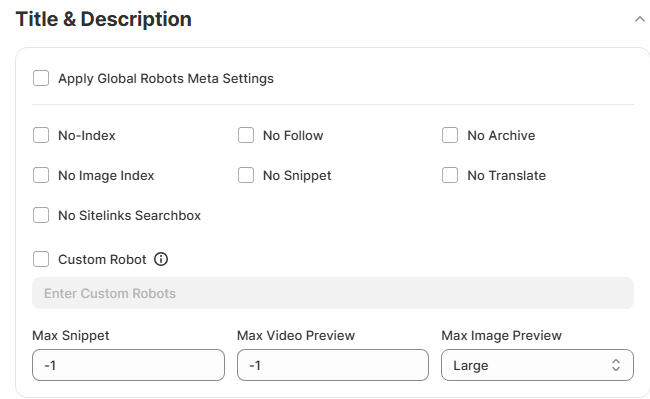
-
- No-Index: Enable this if you want to instruct search engines to exclude your products from their search results.
-
- No Follow: Think of “No Follow” as a signal to search engines saying, “Please don’t pass any ‘link equity’ or ‘link juice’ from the products to the links on them.” This is useful for links that are less important or untrusted.
-
- No Archive: It helps to prevent search engines from creating and displaying a cached version of your products. Consequently, people will not be able to view a “cached” copy of your products if they see it in search results.
-
- No Image Index: If you wish to prevent any images present on the products from being indexed, activate this setting. Your images will then not appear in Google Images search results.
-
- No Snippet: You can use it to tell Google not to show a text snippet or a video preview of your products in the SERP. Users will only see the product’s title and URL.
-
- No Translate: Want to stop the translation facility? Then this setting will help you. You can inform Google not to offer to translate your products in your search results.
-
- Custom Robot: With it, you can define specific, personalized instructions for search engine robots that are not covered by the standard rules. It’s for users needing specific control over bot content interaction.
Suppose you’ve set “nodataset”. It tells bots to prevent your content from being included in large datasets used for training AI models.
Advanced Robots Meta: Here, you can control how search engines interact with your content at an advanced level.
-
- Max Snippet: This helpful feature lets you control the maximum length of that little text snippet that pops up under your page title in search results. You’ve got a few options:
0: No snippets at all. Sometimes you just want the title to speak for itself!
-1: Let Google decide! This means it can be any length it wants.
You may want a snippet that’s, say, 100 characters long. Ok, just set it as max-snippet:100. Super handy for keeping things concise.
-
- Max Video Preview: For the videos, you have this helpful directive to set the maximum length, in seconds. Here’s how you can play it:
-
- 0: No video preview at all.
-
- -1: Give Google the green light to show a preview of any length.
-
- Max Video Preview: For the videos, you have this helpful directive to set the maximum length, in seconds. Here’s how you can play it:
A specific number of seconds. If you only want a quick 15-second glimpse, you’d set it as max-snippet:15. Perfect for giving just a taste!
-
- Max Image Preview: This one’s straightforward. It lets you put a cap on how big the image preview for your products gets in search results.
Your usual choices here are:
-
- None: No image preview will show
-
- Standard: This is your default size
-
- Large: For when you want your images to really stand out with a bigger preview.
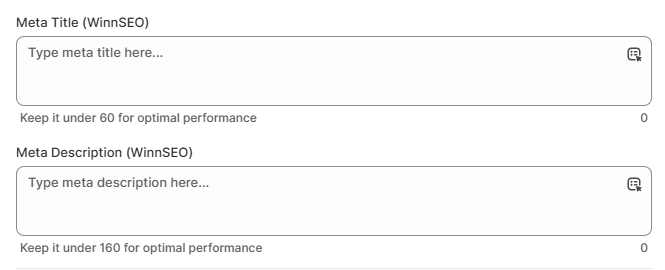
Meta Title: This is the main headline of a product. It’s what pops up in your browser tab and is the clickable link folks see in Google search results. You can set the title according to your choice; the character limit is 60. Or you can choose the same dynamic variables from the dropdown menu, like “Product Title”.
Meta Description: This little summary is pretty similar to the meta title. You can set the meta description according to your choice. And you can choose the same dynamic variables from the dropdown menu, like “Product Description”.
This is where you get to decide exactly how your product looks on Facebook.
-
- Default Image Source: The options here are –
-
- First Available Image
Choose this option if you’d like WinnSEO to automatically pull the very first image found on your products and use it for Facebook.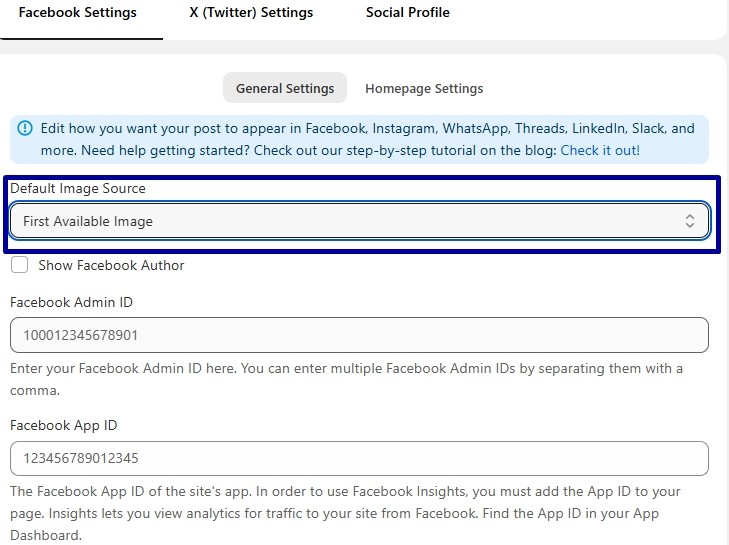
-
- Custom Image
Opt for “Custom Image” to reveal an upload section where you can browse and select a specific picture. This image can be easily updated whenever you wish.
-
- Use URL For Image
This option lets you directly input the web address of your preferred image. This offers an alternative if you don’t wish to use the products’ first image or a custom upload.
-
- Facebook Title & Facebook Description: You can adjust the Facebook preview’s title and description as you wish. You can create a custom one or can use variables.
Twitter Settings
Sharing on the Twitter account too? There are easy options to customize, let’s see.
If you want to keep your Facebook settings for Twitter, check the “Use Same Settings as Facebook” checkbox. But it’ll disable the individual Twitter settings fields.
Or uncheck the “Use Same Settings as Facebook” option. You’ll get the following setting options.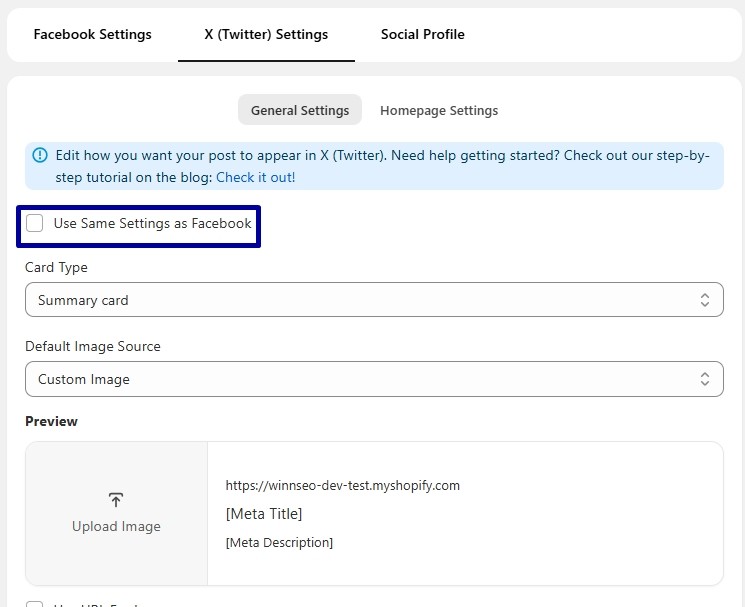
-
- Default Image Source: The options here are –
-
- First Available Image: If you select this, WinnSEO will just grab the initial image from your collection to feature on Twitter.
-
- Custom Image: This is where you can pop in any custom image you like. Feel free to change it up whenever you want.
-
- Use URL For Image: If you prefer to link to an image, just drop its URL here.
-
- Card Type: It lets you control the visual presentation of links shared on your Twitter feed.
-
- Summary card: Displays a small image and a short text summary of a linked webpage.
-
- Summary card with large image: For a more impactful preview, it’ll let you set a large image above the text summary of a linked webpage.
X (Twitter) Title and X (Twitter) Description: Craft the title and description as you want to. Chill! you can also choose from the dynamic variables.
WinnSEO’s ‘Bulk Settings’ for products are your new best friend. Set it and forget the tension.