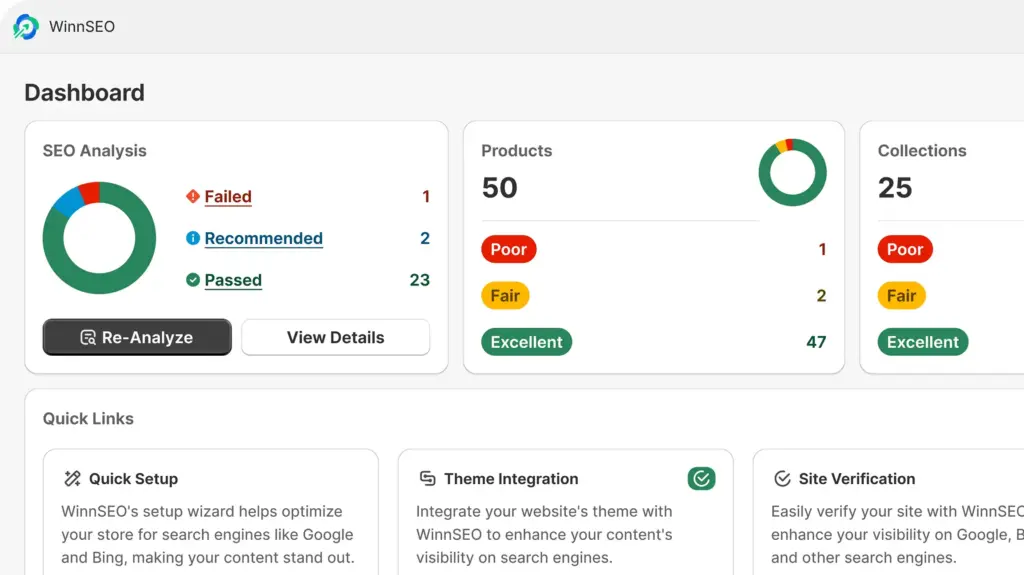
Your Blog just got an SEO upgrade! Optimize quicker with our new shortcut. Adjust robots meta, social previews, and more for all your blog content at once. WinnSEO bulk settings help your blogs looking great!
See how to use it.
Table of Contents
Simplify Settings with WinnSEO’s Bulk Options
Locate the Bulk Settings option:
- Within the WinnSEO app menu, click on Settings
- Navigate to Search Appearance
- Find the Bulk Settings tab
- From the More views option, you can choose Blogs
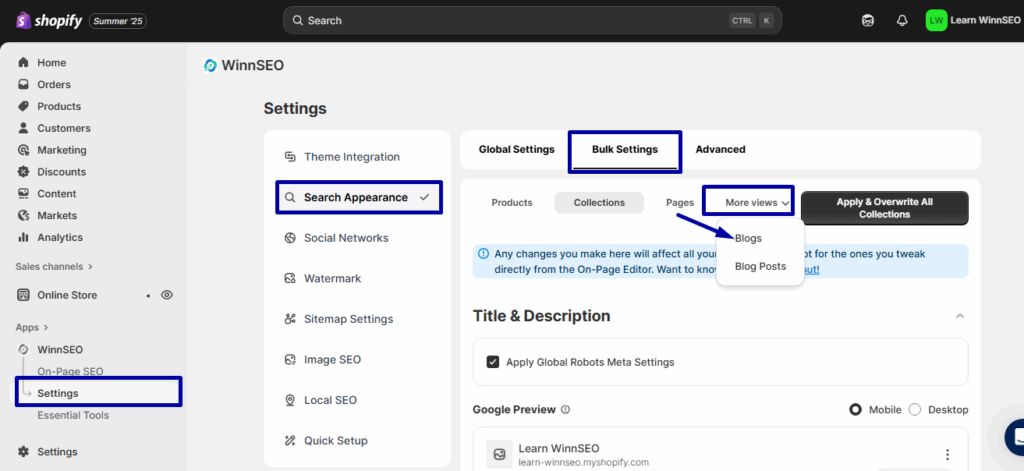
Blog Bulk Settings
Right by “Page” is the “Blog” tab. Feel free to adjust its settings to fit your needs.
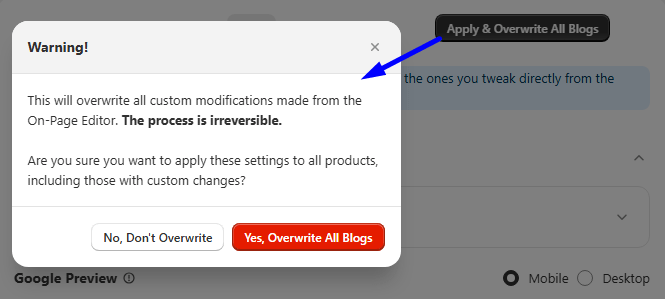
Remember: Local blog edits win over general ones. To clear individual changes and use the general setting for all, select Apply & Overwrite All Blogs.
Title & Description
Go ahead and see different setting options are there under Apply Robots Meta Settings.
A quick note: if you checked Apply Robots Meta Settings, the Global robots meta settings will apply.
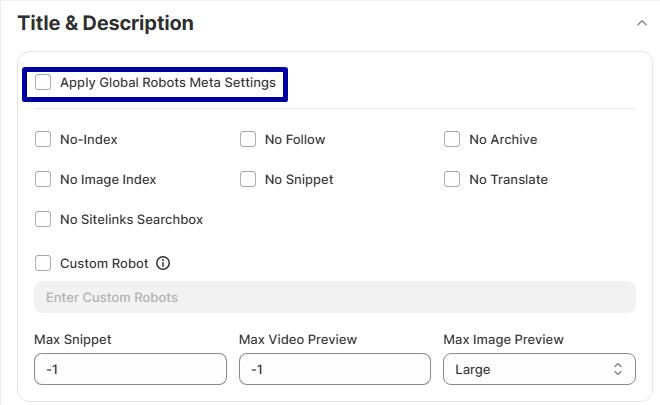
- No-Index: If you don’t want your blog page to show up in search results, turn on this option.
- No Follow: “No Follow” tells search engines not to give any “ranking power” from this blog to the links on it. It’s good for links that aren’t very important or that you don’t fully trust.
- No Archive: Enable the option and search engines will not cache and display the saved version of your blog.
- No Image Index: This setting prevents search engines from indexing the blog’s images.
- No Snippet: Enable this option to hide text snippets from search engine results. They will only see your blog’s title and URL.
- No Translate: Enable it and you can stop Google from offering to translate your blog page in search results.
- Custom Robot: Use this option to give search engine bots specific instructions beyond the standard options.
Advanced Robots Meta: There are more advanced controls for you.
- Max Snippet: This setting lets you choose how long that little description under your page title in Google results can be. You can set it to:
0 means no snippet
-1 means allow any length
Or a specific number. The max-snippet:100 for 100 characters. - Max Video Preview: With it, you can set the maximum duration, in seconds, of a video preview that search engines might show for your video content in search results. You can set it to:
0 means no video preview
-1 means allow any length
Or a specific number of seconds. The max-snippet:15 for a 15-second preview. - Max Image Preview: Here, you can essentially put a limit on the size of your page’s image preview in search.
Options usually include:
- None means no image preview is available
- Standard means normal preview dimensions
- Large refers to an increased preview size
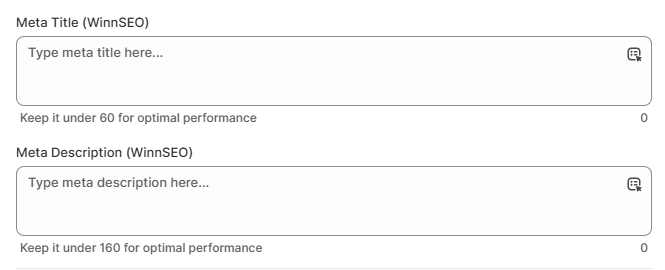
Meta Title: Here, you can set your meta title as you want (keeping it under 60 characters). Also, there is a dropdown that lets you choose dynamic variables like “Blog Title”.
Meta Description: Customize the meta description easily. You can also pick a dynamic option in the dropdown.
Pop in here to design how your blog looks on facebook so it really grabs attention.
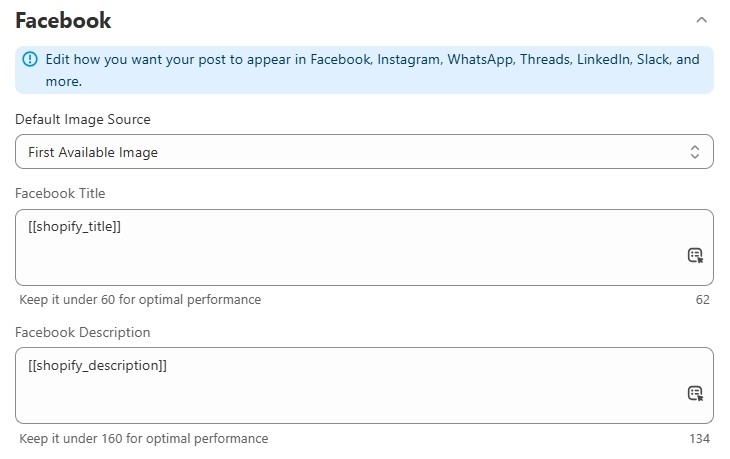
- Default Image Source: The options here are –
- First Available Image
By selecting this option, you can allow WinnSEO to use the first image from your blog on Facebook.
- Custom Image
If you want to set your chosen image, you can upload here.
- Use URL For Image
This is another option to set an image. Just insert the image URL and it’ll be uploaded.
- Facebook Title & Facebook Description: You have complete control over how your content appears when shared on Facebook. So, there are options to write the title and description yourself or you can pick from the variables.
Twitter Settings
Let’s explore the twitter settings now to personalize the blog so that it looks just right on facebook.
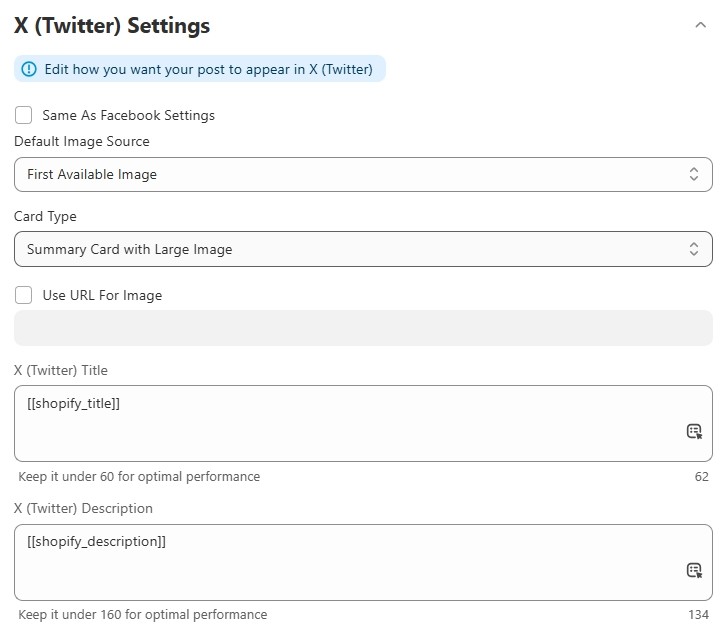
Tick the “Use Same Settings as Facebook” box to use your Facebook settings for Twitter.
Keep the “Use Same Settings as Facebook” option unchecked if you want to use the following setting options.
- Default Image Source: The options here are –
- First Available Image: If you pick this, we’ll just use the initial image from your blog for Twitter. Very simple!
- Custom Image: This is where you can upload any image you’d like. Change it up as often as you wish!
- Use URL For Image: If you prefer to link to an image, drop its URL right here.
- Card Type: This setting controls how shared links look on your Twitter feed.
- Summary card: It displays a small image along with a brief text summary of the linked webpage.
- Summary card with large image: It lets you set a larger image above the linked webpage’s text summary.
X (Twitter) Title and X (Twitter) Description: Write your own title and description. You can also choose from the dynamic variables.
Managing your blog’s overall settings just got way simpler. WinnSEO’s ‘Bulk Settings’ for your blog help you get everything optimized without breaking a sweat.