Meet your new SEO shortcut for Pages! Optimize smarter, faster. Easily tweak robots meta, social previews, and more across all your pages. WinnSEO bulk settings save you time and keep everything smooth!
Let’s learn how you can adjust the page bulk settings.
Table of Contents
Bulk Adjustments with WinnSEO
Where to find Bulk Settings:
- Within the WinnSEO app menu, click on Settings
- Navigate to Search Appearance
- Find the Bulk Settings tab
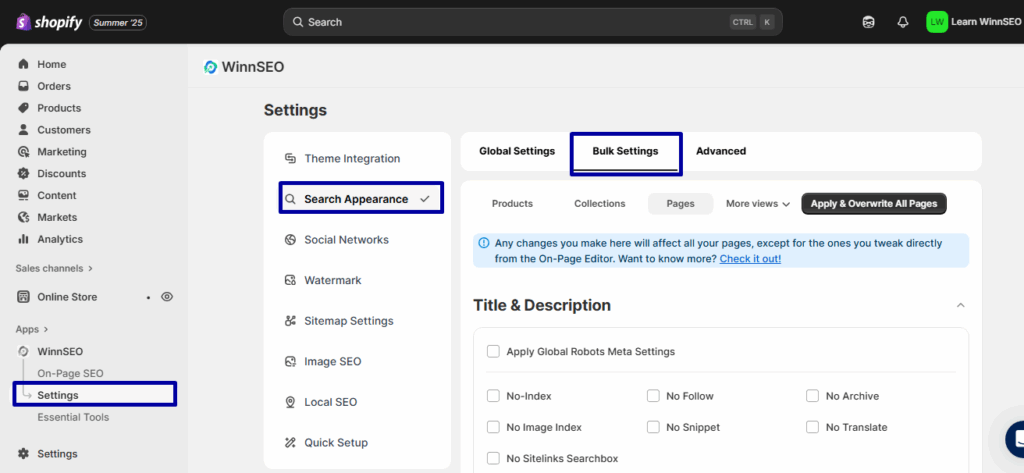
Page Bulk Settings
Can you it? Next to “Collection,” find the “Page” tab. You can set up its options just how you like.
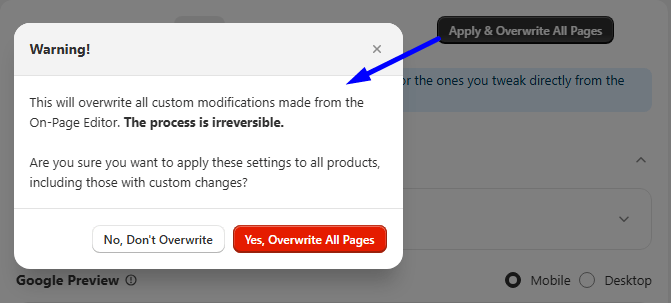
NOTE: A page’s own settings beat the group setting. Want the group setting everywhere? Hit “Apply & Overwrite All Pages.”
Title & Description
here, you’ll find several useful meta tag settings under Apply Robots Meta Settings. Keep in mind, if you checked Apply Robots Meta Settings, your site will just use the Global robots meta settings.
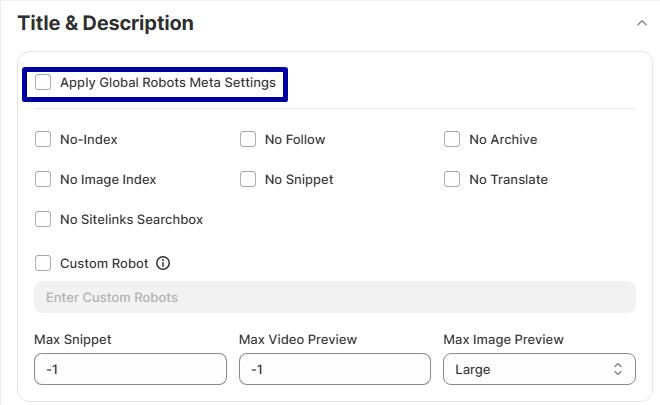
- No-Index: If you’d like search engines to skip the page when displaying search results, enable this option.
- No Follow: “No Follow” tells search engines not to give any “ranking power” from this page to the links on it. It’s good for links that aren’t very important or that you don’t fully trust.
- No Archive: This setting stops search engines from saving and showing a cached version of your page.
- No Image Index: To keep any images on a particular page out of search results, enable this setting. It’ll prevent them from showing up in places like Google Images.
- No Snippet: Don’t want to show a text snippet or a video preview of your page in the SERP? Turn it on, and users will only see the page’s title and URL.
- No Translate: To disable Google’s offer to translate your page in search results, use this setting.
- Custom Robot: You can use this to provide custom instructions to search engine bots that aren’t covered by the default settings. It’s ideal for users who require very specific control over how bots handle their content.
Advanced Robots Meta: Take precise command over search engine indexing and crawling.
- Max Snippet: This directive lets you control the maximum length, in characters, of the text snippet or the little description that search engines display for your page in search results. You can set it to:
0 means no snippet
-1 means allow any length
Or a specific number. The max-snippet:100 for 100 characters. - Max Video Preview: This is for controlling the maximum duration, in seconds, of a video preview that search engines might show for your video content in search results. You can set it to:
0 means no video preview
-1 means allow any length
Or a specific number of seconds. The max-snippet:15 for a 15-second preview. - Max Image Preview: Basically, with it, you can set a cap on how big the image preview for your page appears in search results.
Options usually include:
- None means preview won’t display any images
- Standard means preview will appear at its usual size
- Large means an enlarged preview
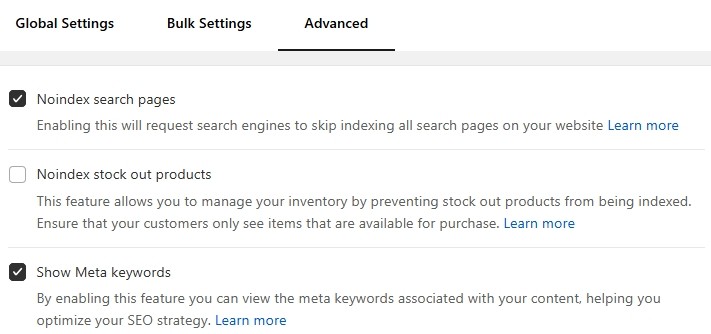
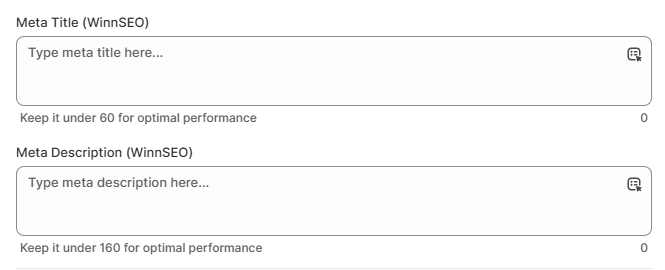
Meta Title: The title of your web page shows up in browser tabs and as the main clickable text in search engine results. You’re free to set your own title (keeping it under 60 characters) or use dynamic options like your “Collection Title” from the dropdown.
Meta Description: Just like with the meta title, you can set the meta description as you wish. You can also pick from the same dynamic options in the dropdown, such as “Collection Description.”
Get ready to fine-tune the pages for Facebook. Check these out!
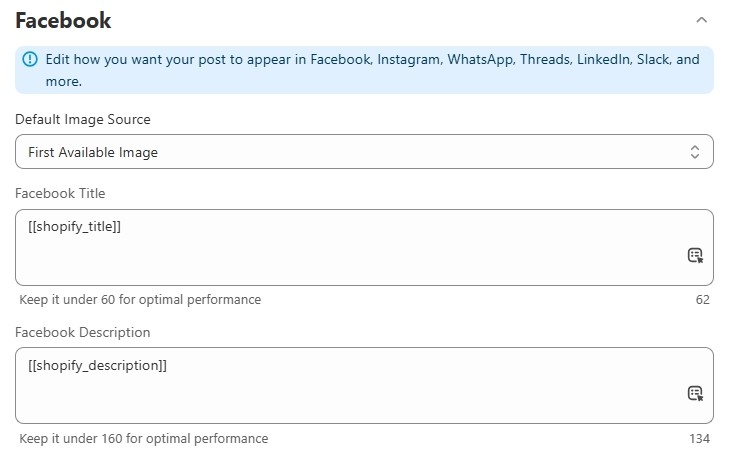
- Default Image Source: The options here are –
- First Available Image
Go with this option, and our App will just automatically use the first image from your page on Facebook.
- Custom Image
Opt for “Custom Image” to reveal an upload section where you can browse and select a specific picture. This image can be easily updated whenever you wish.
- Use URL For Image
Inserting the image URL of your desired image is a good alternative if you don’t want to use the first image from your page or upload a custom one.
- Facebook Title & Facebook Description: Enjoy the flexibility to modify the Facebook preview’s title and description as you wish. You can either type in your own or pick from the variables.
Twitter Settings
Want to tweak the pages for Twitter too? This is your spot to make it happen!
To use your Facebook settings for Twitter, simply check the “Use Same Settings as Facebook” box. However, doing this will deactivate the separate Twitter setting options.
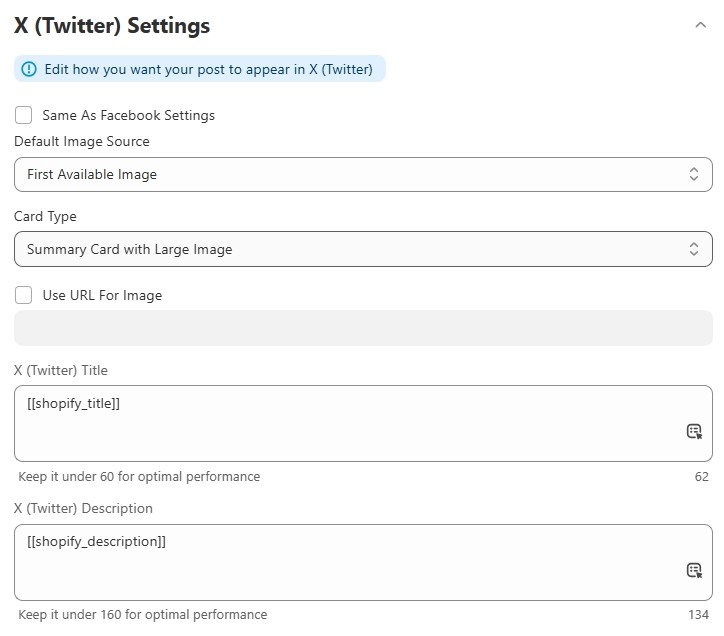
If you uncheck the “Use Same Settings as Facebook” option. You’ll get the following setting options.
- Default Image Source: The options here are –
- First Available Image: This option means we’ll automatically grab the very first image from your page to feature on Twitter.
- Custom Image: It’s your chance to upload any custom image you want. Feel free to switch it up whenever you prefer.
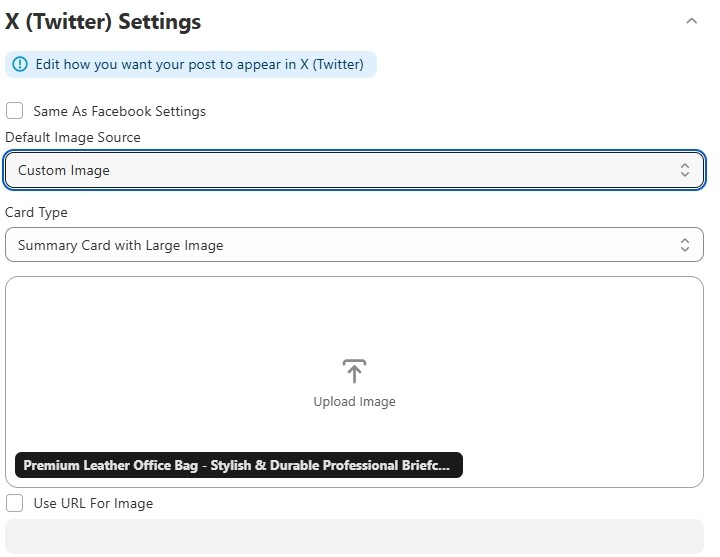
- Use URL For Image: Got an image URL? Just pop it in here, and we’ll use that photo.

- Card Type: This setting allows you to control how links appear when shared on your Twitter feed.
- Summary card: It displays a small image along with a brief text summary of the linked webpage.
- Summary card with large image: This option allows you to display a larger image above the text summary of a linked webpage, creating a more impactful preview.
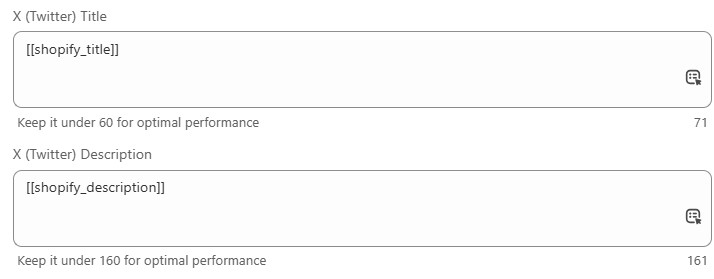
X (Twitter) Title and X (Twitter) Description: You’re free to create your own title and description. Or, simply pick from our dynamic variables.
No more going page by page! With WinnSEO’s ‘Bulk Settings’ for pages, you can easily boost your site’s visibility across all your pages in a snap.