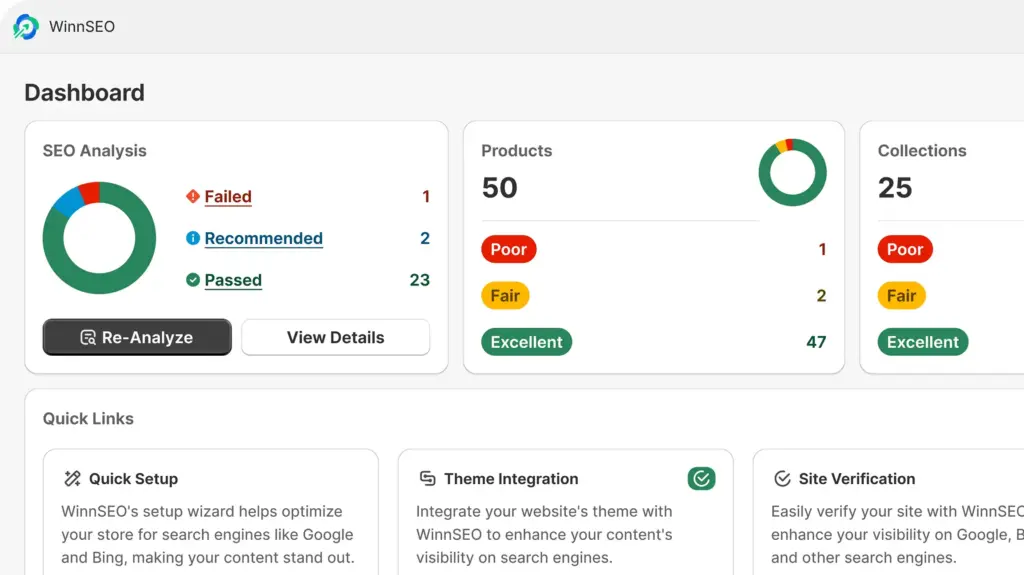
Meet your new SEO shortcut, optimization just got way smarter. Tweak robots meta tags, social post previews, and more, all in one go. WinnSEO bulk collection settings save you time and keep everything looking sharp!
Let’s learn how you can use the feature.
Table of Contents
Manage Bulk Settings with WinnSEO
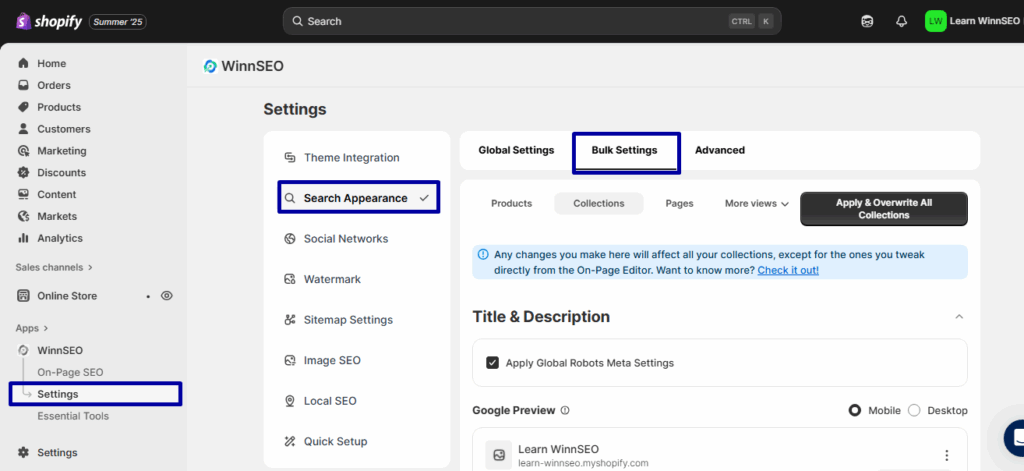
Find the Bulk Settings feature:
- Within the WinnSEO app menu, click on Settings
- Navigate to Search Appearance
- Find the Bulk Settings tab
Collection Bulk Settings
Look beside “Products” and boom, there’s your “Collection” tab.
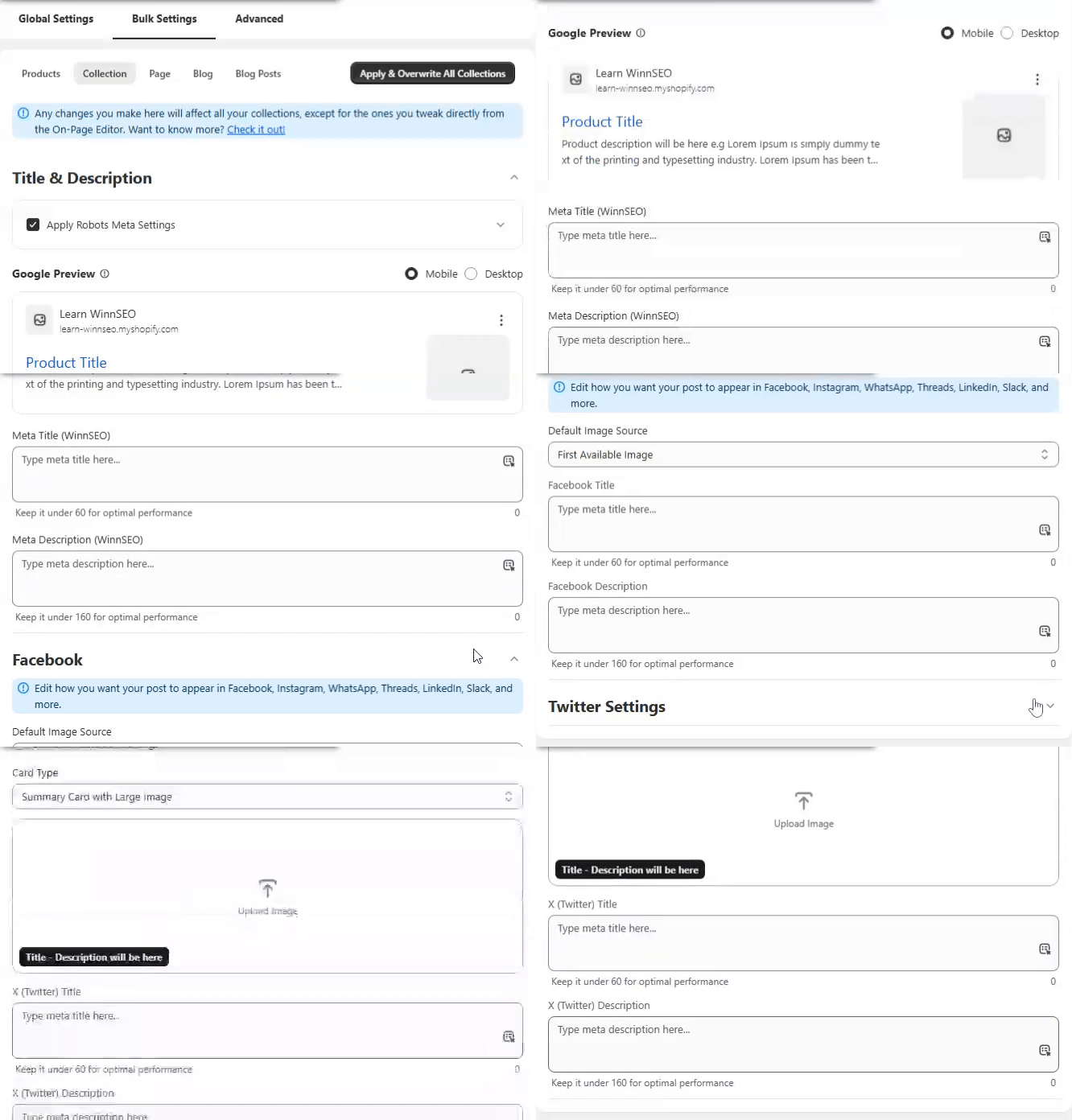
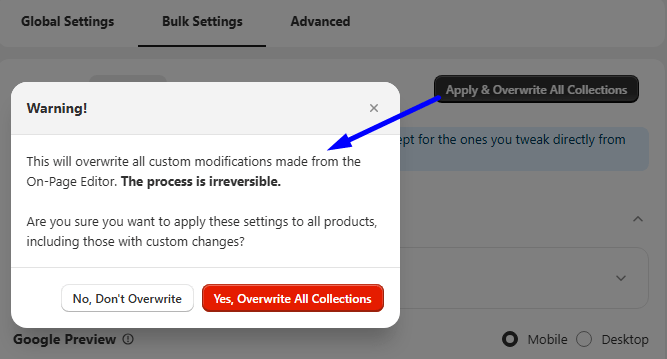
Remember: If you tweak something on the collection, that setting wins over the bulk one. But hit “Apply & Overwrite All Collections” (top-right), and it clears all those individual changes and apply the bulk settings across everything.
Title & Description
The Apply Robots Meta Settings present you with different useful settongs. But, if you enable it, your Global robots meta settings will be used instead.
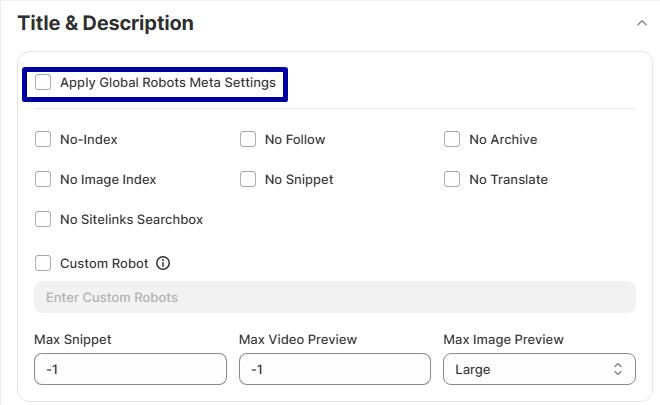
- No-Index: Turn this on if you want search engines to ignore the collection in their search results.
- No Follow: You can use “No Follow” to instruct search engines not to share any “link equity” from this content with its outgoing links, which is helpful for links you don’t want to endorse or that are less critical.
- No Archive: It prevents search engines from creating a cached copy of the collection.
- No Image Index: Turn this setting on if you want to stop images on a specific collection from appearing in Google Images search results.
- No Snippet: This setting allows you to tell Google not to display a text snippet or video preview of your collection in search results. Users will then only see your collection’s title and URL.
- No Translate: If you wish to stop the translation option, enable it. This way, you can instruct Google not to offer to translate the collection in your search results.
- Custom Robot: This feature lets you give search engine robots special instructions beyond the usual rules. It’s for anyone who needs to precisely control how bots interact with their content.
Advanced Robots Meta: Let’s finely tune how robots interact with your pages.
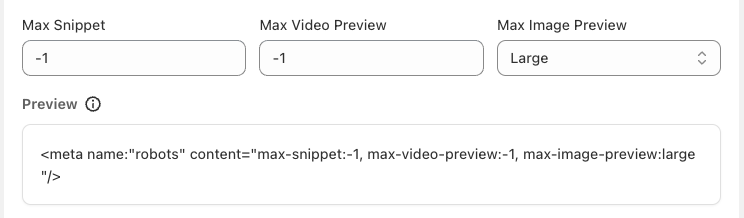
- Max Snippet: This directive lets you control the maximum length, in characters, of the text snippet or the little description that search engines display for your page in search results. You can set it to:
0 means there is no snippet
-1 means allow any length
Or a specific number. The max-snippet:100 for 100 characters. - Max Video Preview: It lets you adjust the maximum duration, in seconds, of a video preview that search engines might show for your video content in search results. You can set it to:
0 means no video preview
-1 means allow any length
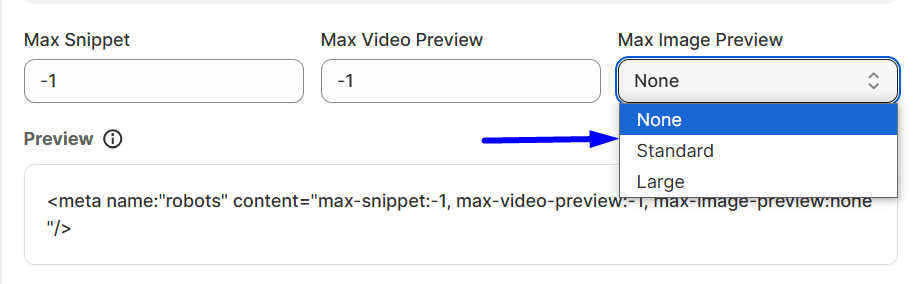
Or a specific number of seconds. The max-snippet:15 for a 15-second preview. - Max Image Preview: Utilize the option to set a cap on how big the image preview for your page appears in search results.
Options usually include:
- None means images will be hidden from the preview
- Standard means you’ll see the preview in its regular size
- Large means preview will appear at a bigger scale
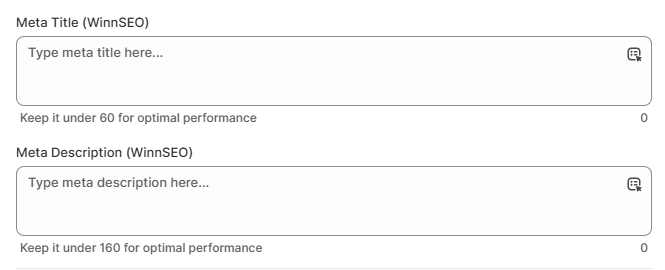
Meta Title: This refers to the collection title you see in your browser tab and as the clickable link in search results. You can customize it (up to 60 characters) or pick from options like “Collection Title,” in the dropdown menu.
Meta Description: According to your preferences, you can set the meta description. You can also pick from the same dynamic options in the dropdown, such as “Collection Description.”
Got a collection going on Facebook? Ok, here are helpful features to customize.
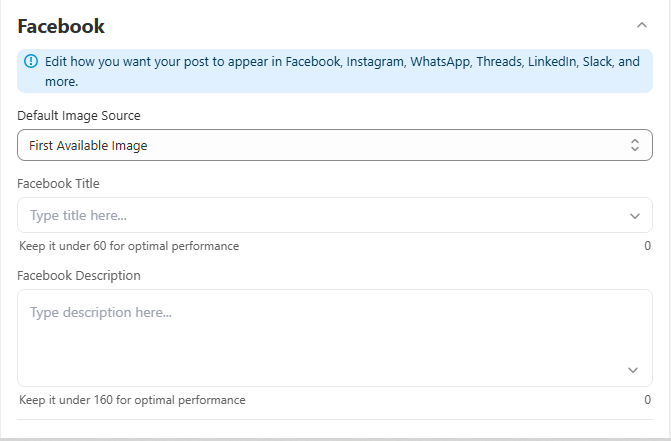
- Default Image Source: The options here are –
- First Available Image: In this setting, WinnSEO will just grab the first image from your page to use for Facebook. Simple!

- Custom Image
If you have a favorite image, just upload it here, and you can update it whenever later.
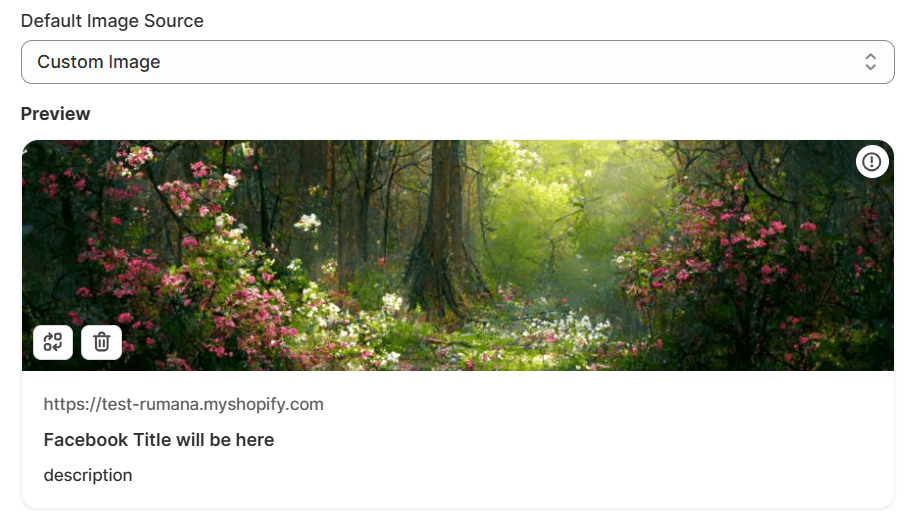
- Use URL For Image
This is for when you want to just use an image’s direct link. Super useful if the first image isn’t right or you don’t want to upload.

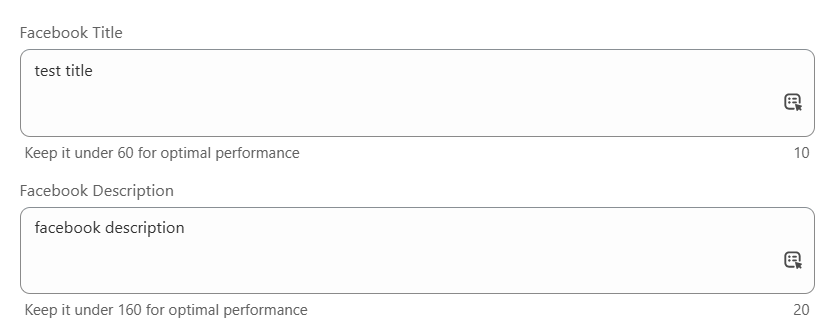
- Facebook Title & Facebook Description: You’re free to change the title and description of your Facebook preview. Either customize them directly or select from the available variables.
Twitter Settings
And here you got to customize the collection for your Twitter account. Find it under ‘Facebook’.
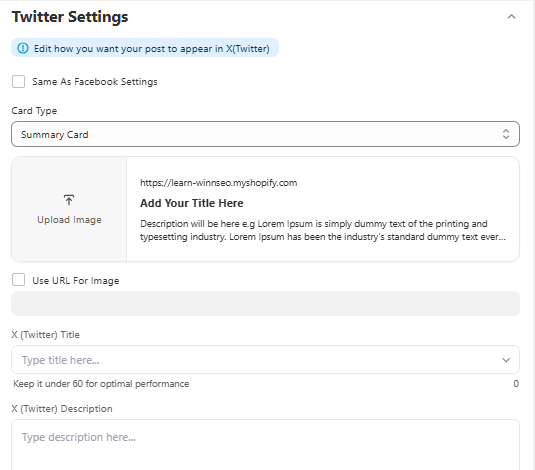
If you’d like your Twitter settings to match your Facebook ones, just check the “Use Same Settings as Facebook” box. Keep in mind, doing so will disable the individual Twitter setting fields.
You can also uncheck “Use Same Settings as Facebook” to access the individual Twitter settings.

- Default Image Source: The options here are –
- First Available Image: WinnSEO will just snag the very first image you’ve got in your collection to show off on Twitter.
- Custom Image: You may want to use a specific pic, no problem! Just upload whatever custom image you like.

- Use URL For Image: If you’ve got an image online, just paste its URL here, and the App will use that.

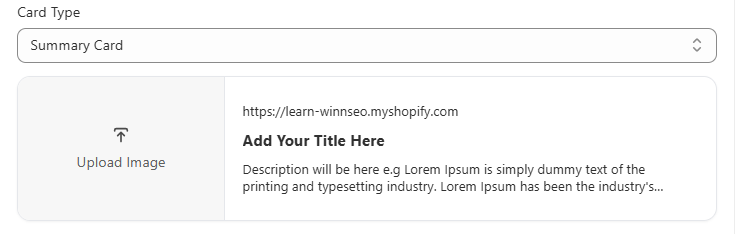
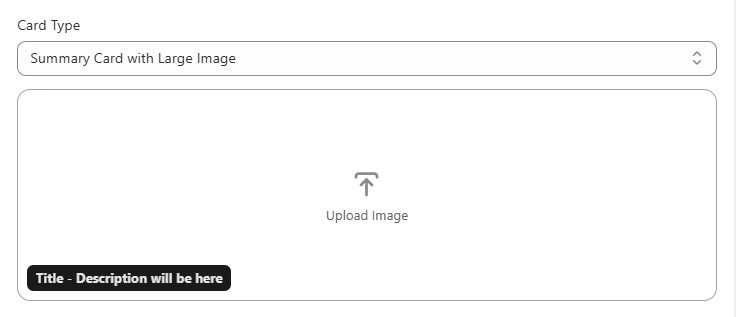
- Card Type: Get control over how shared links look on your Twitter feed by utilizing this option.
- Summary card: It shows a small image and a brief text summary for any linked webpage.
- Summary card with large image: To create a more striking preview, you can choose this setting to place a large image above the text summary of a linked webpage.
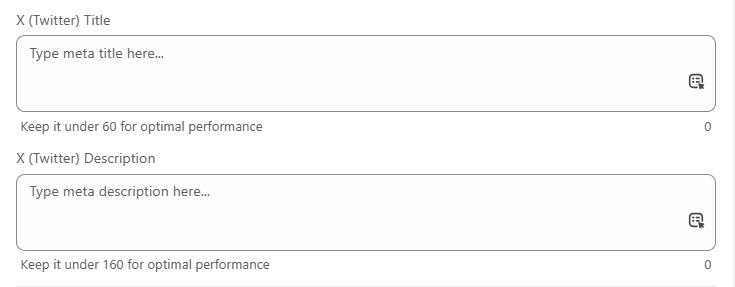
X (Twitter) Title and X (Twitter) Description: Write the title and description according to what you want. There are options to choose from the dynamic variables, also.