Verifying your website on Pinterest is useful, you enjoy powerful features like rich pins, detailed analytics, and a more professional brand presence. This guide will walk you through the seamless verification process using WinnSEO.
Let’s dive into the procedure.
Verify Your Website with Pinterest Using WinnSEO
It’s a two-step process, quick and easy.
Step 1: Go to the Pinterest website
Visit the Pinterest website and create or log in to your account. If it’s a personal account, you can simply activate a business account within the current account. Then you can jump between your personal and professional accounts easily.
Now, follow these steps:
- Go to your Pinterest settings
- Enter your website URL in the provided field
- In your Pinterest settings, go to “Claimed external accounts”.
- Find the “Websites” section and click “Claim”.
A pop-up will appear with options to claim your website.
- Select “Add HTML tag” and copy the entire HTML meta tag provided
- Click on the “Continue” button
Step 2: Navigate to WinnSEO in your Shopify store
- Select Essential Tools from the WinnSEO menu.
- You’ll find Site Verification in the Tools tab.
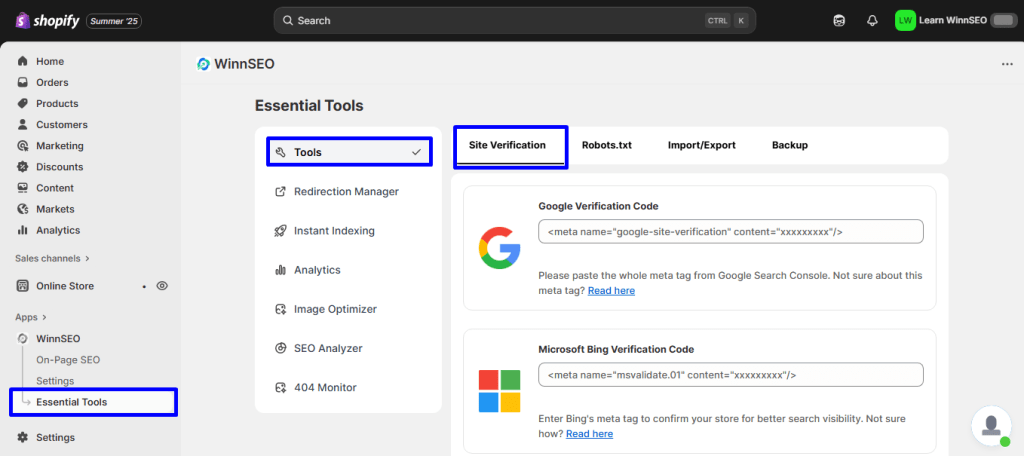
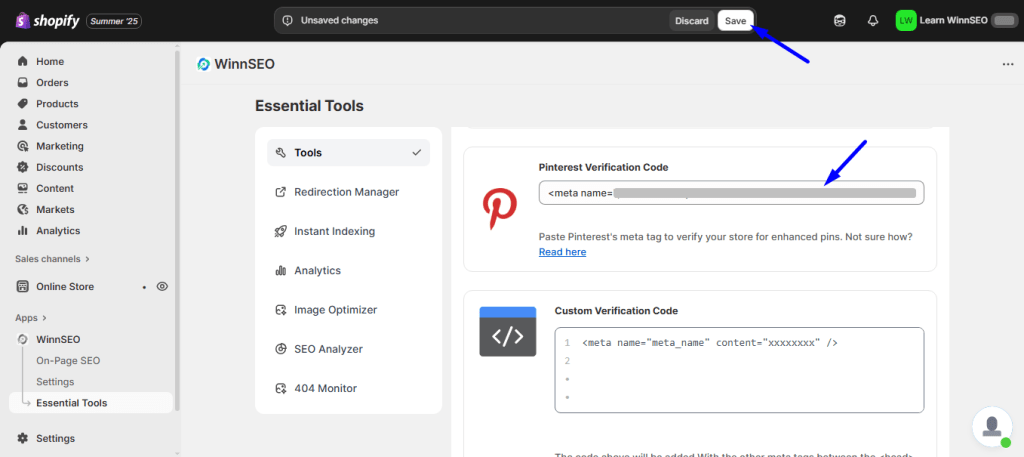
Scroll down to the “Pinterest Verification Code” field and paste the HTML meta tag you copied earlier into this field.
Finally, save the changes.
Again, return to Pinterest and enter your website URL. Then click on the “Verify” button. It may take a while to verify your site. Then you’re done!
As you can see, the process is quite straightforward. Now try yourself.