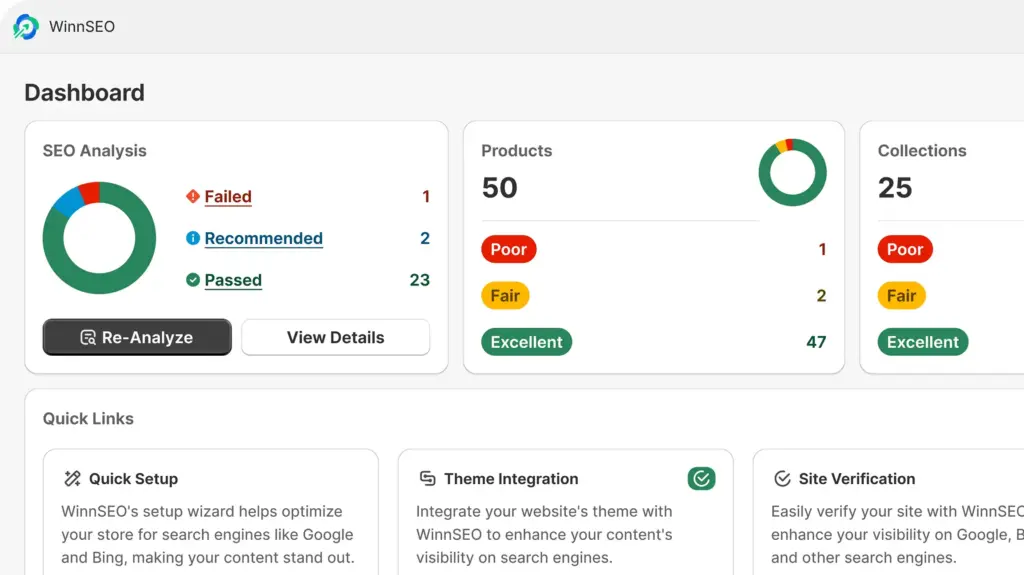
To observe how your website is performing in Google’s search results, Google Search Console is like your backstage pass. This cool web tool lets you keep an eye on important stats and flags any issues.
With Google Search Console, it’s super easy to show Google it’s really your site. And once that’s done, you’re all set to dive into the data and see what’s happening.
We’ve outlined a few steps to show you how you can manually verify Google Search Console with WinnSEO.
STEP 1: Visit Google Search Console
Go to the Google Search Console. You will see the Search Console login page. Click “Start now” and proceed to log in to your Google account.
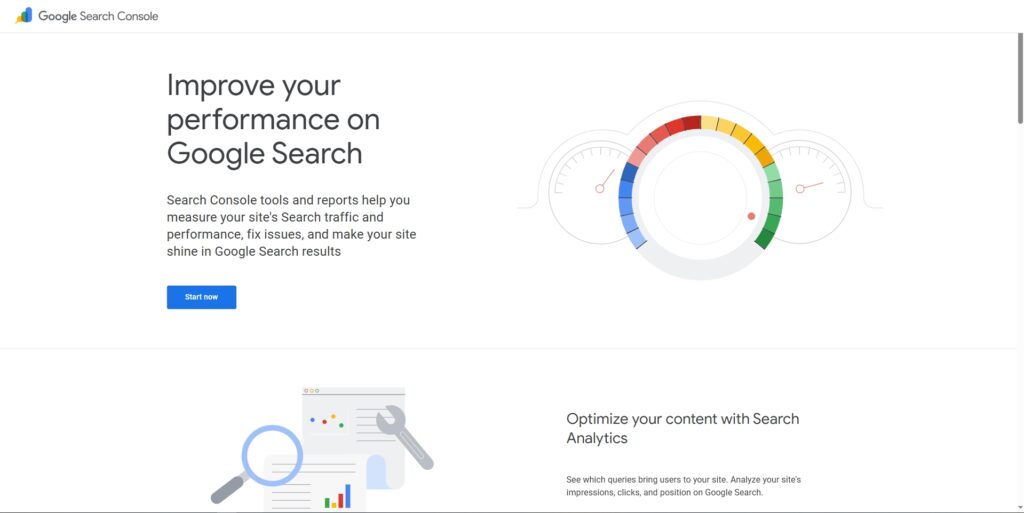
However, if you’re already logged in to the GSC, the “Start Now” button might not appear. In that case, you’ll need to click the “Add Property” button.
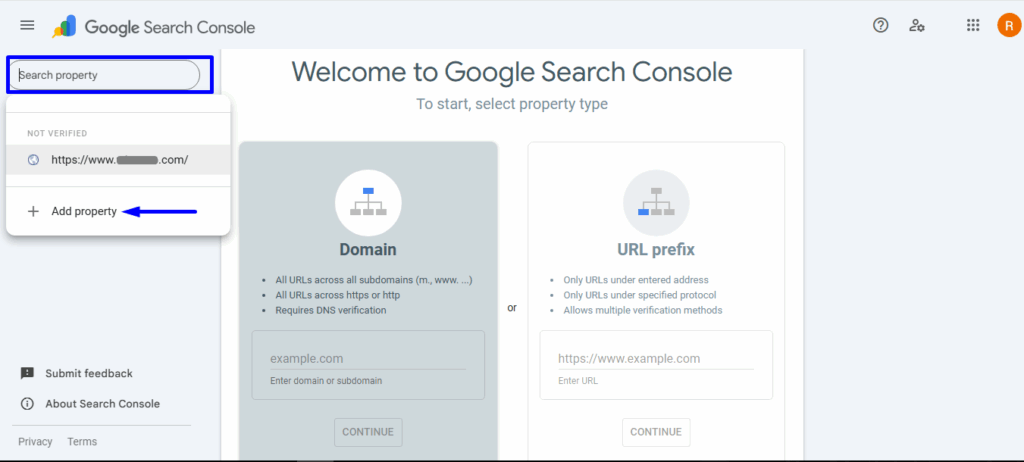
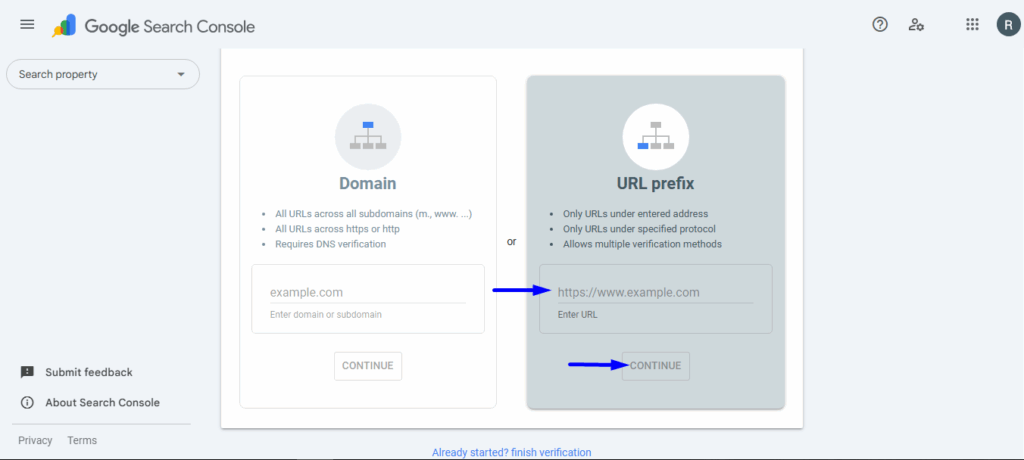
Now, select the property type.
- Insert the website URL in the URL Prefix property type
- Click on Continue
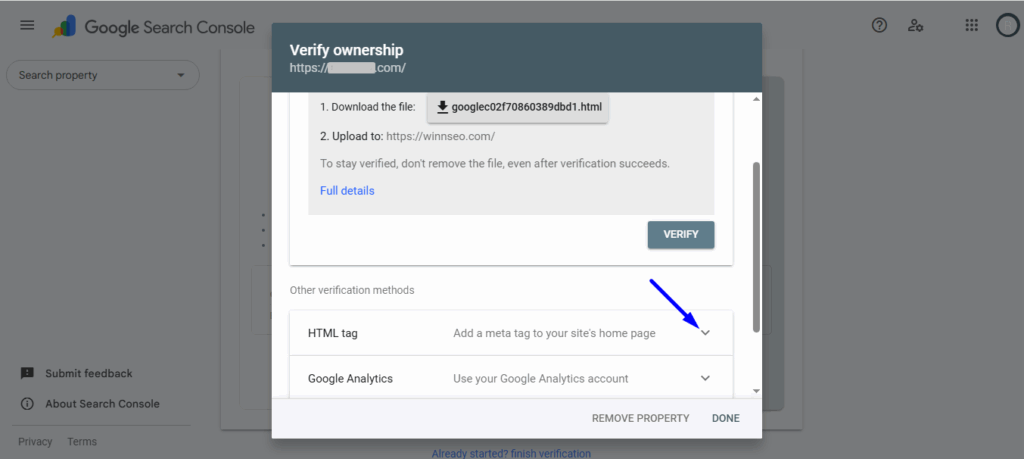
You’ll now confirm ownership of the site using one of the supported methods. The HTML tag method simply involves adding a verification code to WinnSEO, so we’ll choose this option here.
STEP 2: Copy the HTML Tag
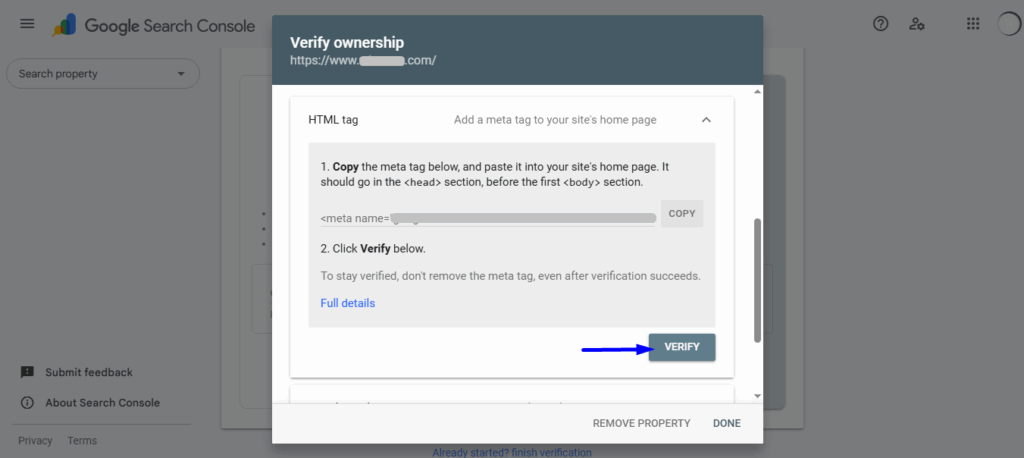
So, expand the HTML tag option, as we’ve shown in the image.
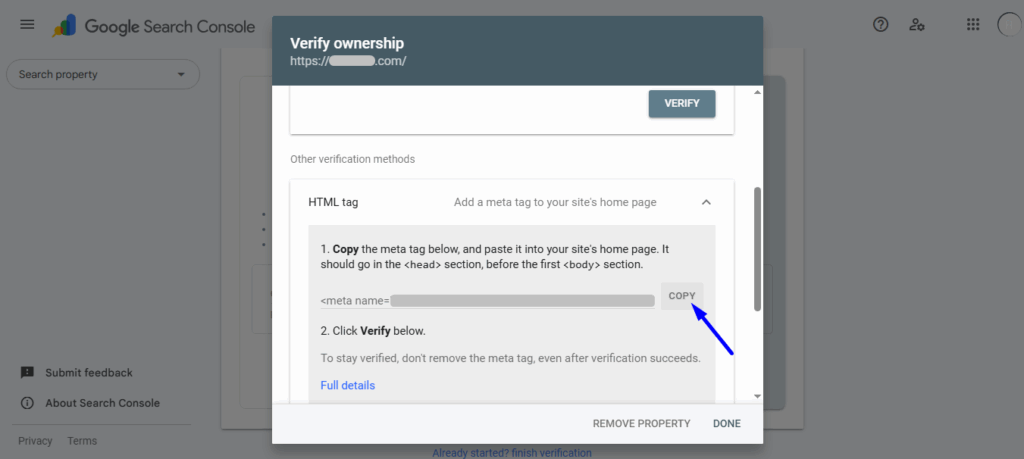
Next, click Copy to copy the HTML tag.
STEP 3: Site Verification Tool in WinnSEO
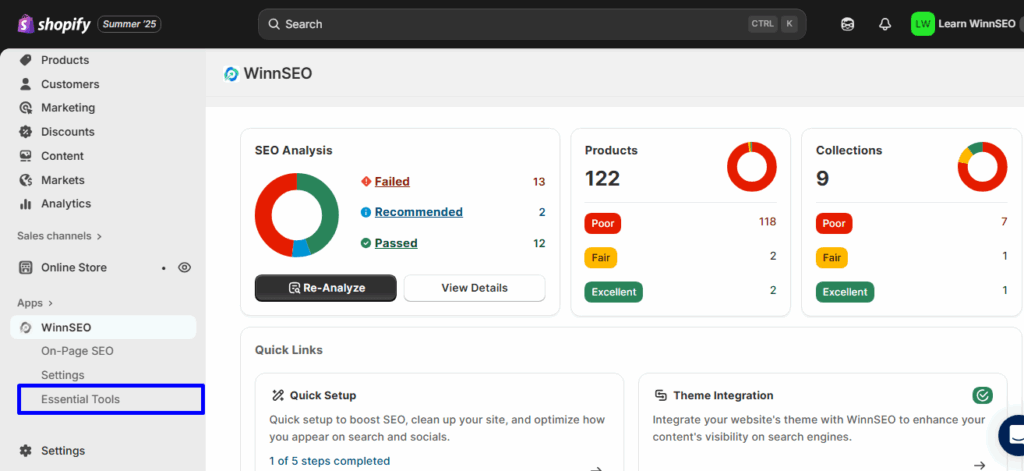
In this step, you have to go to your Shopify store’s dashboard. From your dashboard, navigate to the Essential tool under WinnSEO App.
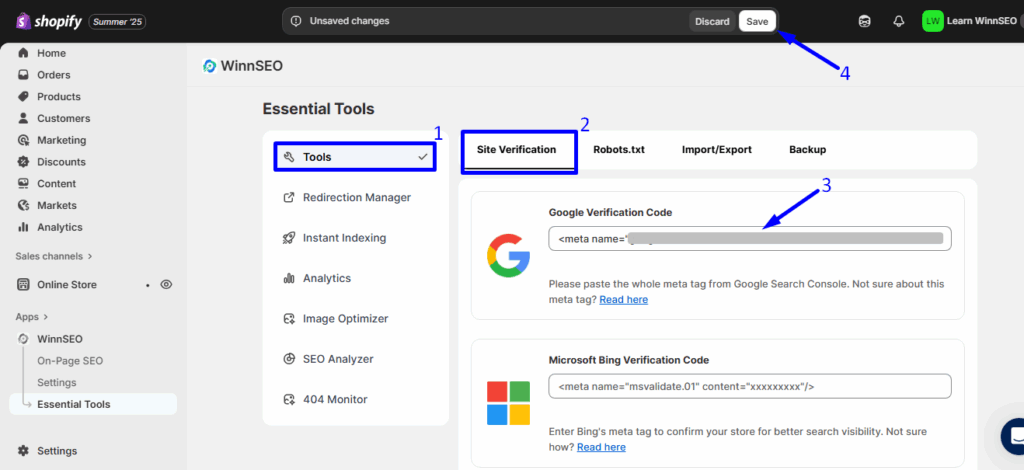
- Tools is selected already
- See Site Verification tab is also selected
- Insert the HTML tag you’ve copied previously (STEP 2) in the Google Verification Code field
- Hit the Save Settings button.
STEP 4: Verify Your Site Ownership
Finally, return to Google Search Console and hit the “Verify” button. Once the verification is successful, you’ll be taken to your dashboard.
Hope, you find the steps easy. Now it’s your turn!
NOTE: If the verification failed, check the page source to make sure the HTML code is added properly. If not, clear the website cache and check again.